Home>Devices & Equipment>Fixing Audio Static and Crackling Sounds

Devices & Equipment
Fixing Audio Static and Crackling Sounds
Modified: 3 October 2026
Table of Contents
Start here: isolate the problem to fix audio static
Start by ruling out the simplest causes when you need to fix audio static. Often what sounds like a staticky speaker issue disappears after a quick cleaning. On an iPhone, use a small soft-bristled brush to clear the speaker and receiver openings, then open Settings > Sounds & Haptics and drag the Ringtone and Alerts slider back and forth a few times to confirm the speaker itself can produce clean sound. If the slider button is dimmed, the speaker might need service. Moving your setup to a different outlet or room can also reveal whether the building’s wiring is injecting noise into your gear.
When the noise only appears during specific tasks, the source device is the next suspect. Hearing static on my audio interface when videos play could point to a configuration issue rather than a failing device. Similarly, if your picture suddenly softens when audio is connected, a configuration conflict could explain why my webcam wont focus when recording with audio interface. Before replacing anything, test the hardware with a different computer and cable. If the distortion follows the gear, that can help you tell if your audio interface is broken.
Fixing noise from microphones and recording gear
Many recording noises share an electrical root cause, so before you swap out gear, try moving your entire setup to a different outlet or room to rule out your building’s wiring. When you need to get rid of static on microphone recordings, start by swapping in a known-good XLR or USB cable. A failing shield or loose connector is the most common entry point for interference. If a low hum persists, you likely need to get rid of microphone buzz by breaking a ground loop. Plugging your audio device and computer into the same power strip often silences it.
Persistent crackling during playback or monitoring often points to digital timing issues. Audio interface crackling usually responds to increasing the buffer size in your DAW. Also check that the recording unit and system are locked to the same sample rate. High-frequency hiss is a different problem from hum. When you hear static in a microphone that sounds like steady white noise, the preamp gain is probably set too high for the signal your mic is putting out.
To get rid of background noise in microphone tracks without dulling the vocal, position the mic closer to the sound source. This allows you to lower the preamp level, which naturally reduces the room tone and self-noise the circuit adds. A special case arises when you hear a digital squeal or feedback when thunderbolt and audio cable connected to the same computer. This often means the Thunderbolt cable lacks adequate shielding and is radiating noise directly into an adjacent unbalanced audio lead. Routing the two cables as far apart as physically possible is the first fix to try.
- feedback when thunderbolt and audio cable connected — Feedback When Thunderbolt And Audio Cable Connected
- get rid of background noise in microphone — How To Get Rid Of Background Noise In Microphone
- get rid of static on microphone — How To Get Rid Of Static On Microphone
- get rid of microphone buzz — How To Get Rid Of Microphone Buzz
- audio interface crackling — Why Is My Audio Interface Crackling
- static in a microphone — Why Is There Static In My Microphone
Cleaning up playback on computers and phones
Playback problems on computers and phones often start with how the device is processing audio in real time, not with a failing speaker. When you get rid of clicks and pops in Pro Tools during playback, the culprit is almost always a buffer underrun. In Pro Tools, opening Setup > Playback Engine and raising the buffer to 256 or 512 samples gives the processor enough headroom to keep the stream intact. On Windows, switching the power plan to High Performance prevents the system from throttling the CPU mid-session when running demanding audio software. In Pro Tools, closing other applications and disabling Elastic Audio on tracks that do not need it further reduces the load.
Streaming services introduce their own quirks. Intermittent sound loss during streaming frequently traces back to a Wi-Fi or Bluetooth buffer that empties faster than the network can refill it. Pausing other downloads or moving closer to the router often restores stability. A related symptom appears when headphones playing only background music reveal a stereo imaging fault. The plug may not be fully seated, or a headphone jack configured for a headset is routing the center channel away from the earpieces.
On mobile devices, a crackling phone speaker issue that persists after a visual cleaning of the grille usually points to an app or system audio process holding the output buffer too tight. Closing background media apps or toggling Bluetooth off and on forces the driver to renegotiate the stream. Desktop operating systems can also misroute multichannel content. The most effective way to fix loud background music and quiet voices in Windows 10 streaming is to open the sound control panel, select the playback device, and disable all spatial sound and channel upmixing effects so the stereo downmix preserves the vocal track.
Quieting hum and buzz in home stereo and theater systems
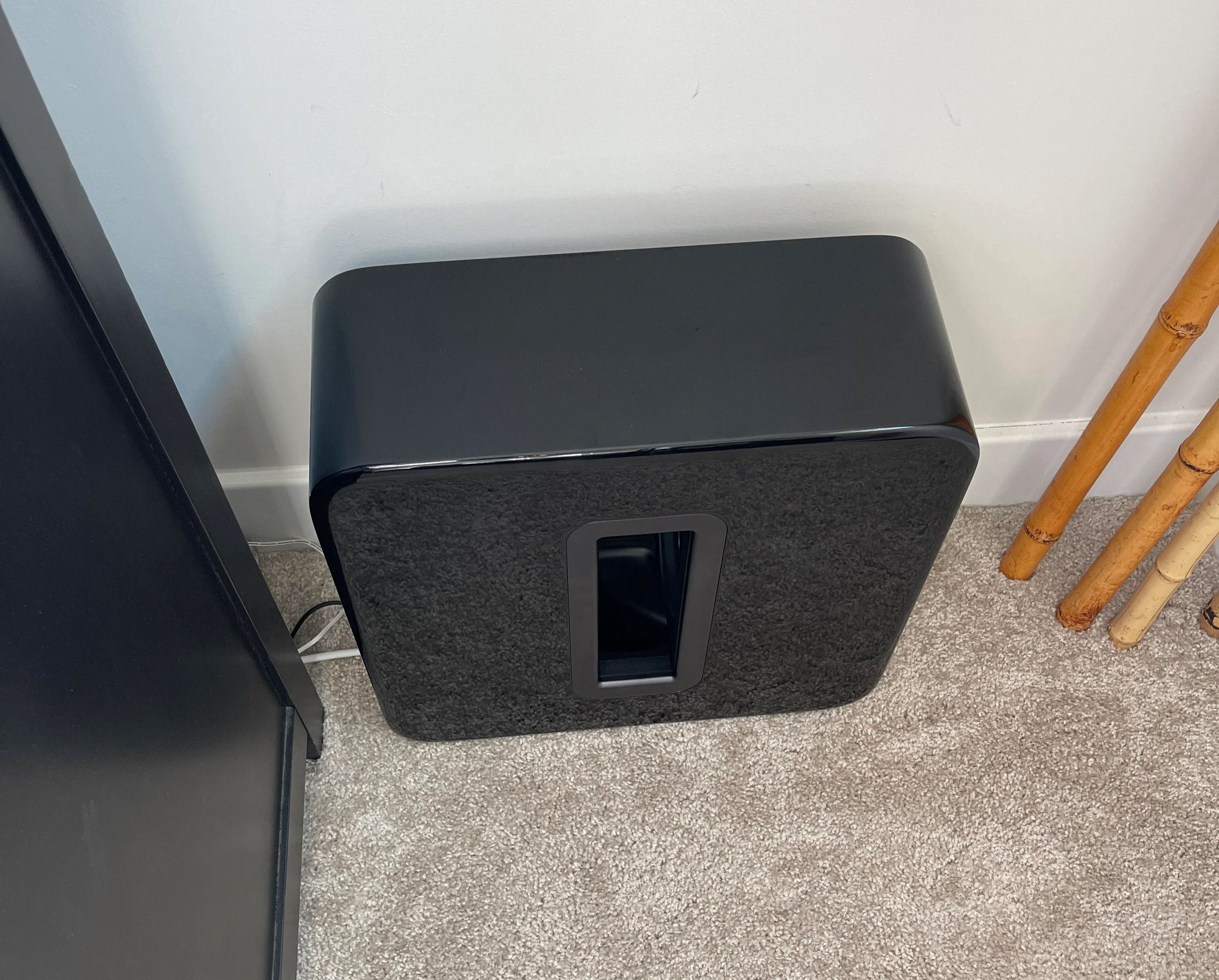
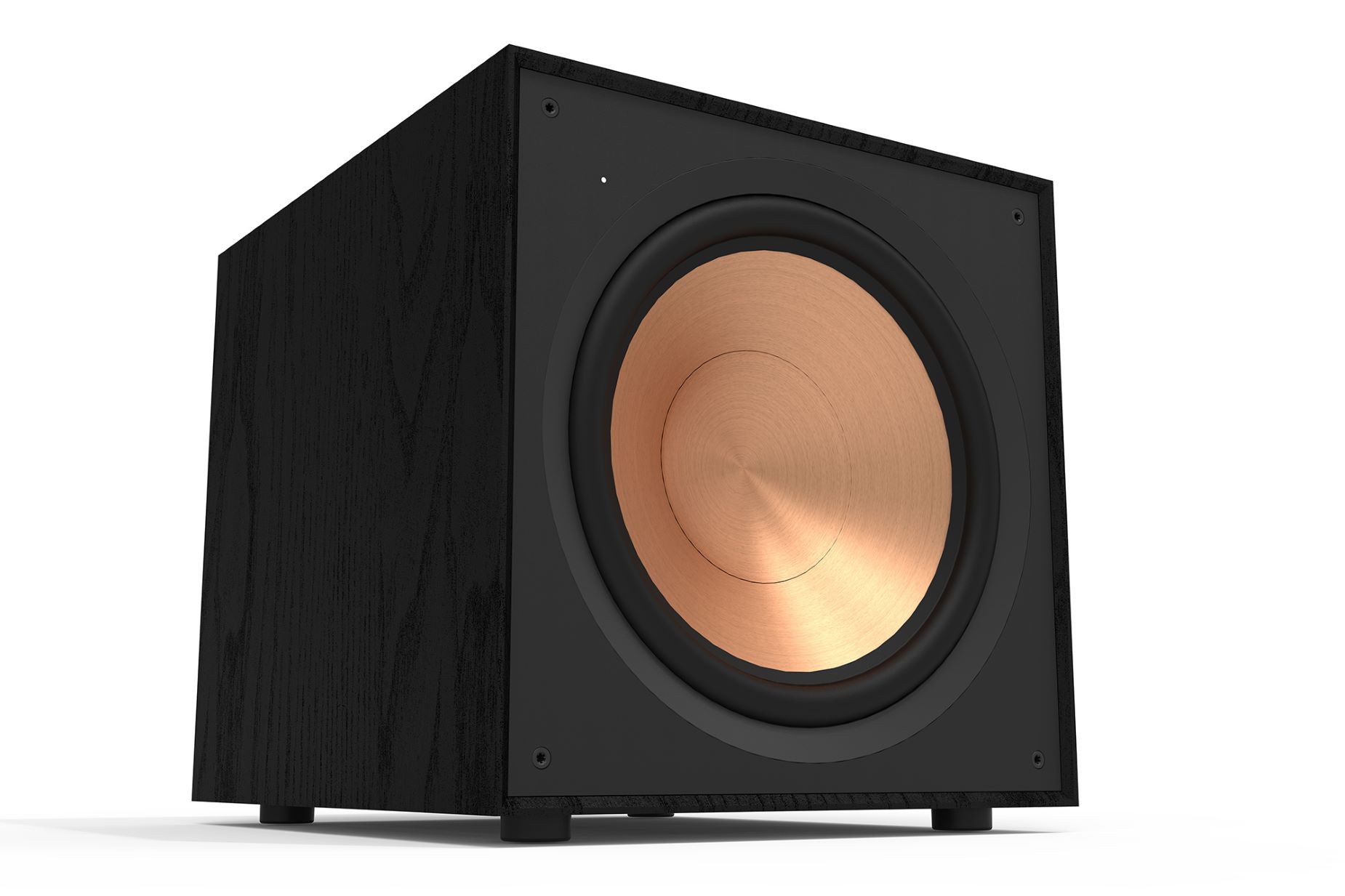
Constant low-frequency hum that persists even when the volume is at zero almost always traces back to a difference in electrical potential between two pieces of grounded gear. When you hear subwoofer hum when receiver turned off, the issue may involve voltage on the signal cable’s shield. The fastest way to confirm this is to temporarily connect the sub and the receiver to the same power strip. If the noise vanishes, a ground loop was the culprit. An isolation transformer on the subwoofer’s line-level input may help.
A buzzing stereo receiver may point to a contaminated AC line rather than a failing transformer. Large appliances sharing the same circuit, refrigerators, dimmer switches, or fluorescent ballasts, inject sharp harmonics. The receiver’s power supply cannot fully filter these harmonics. Plugging the unit into a different outlet on a separate breaker, even with a heavy extension cord for testing, quickly reveals the source. This test shows whether the buzz lives in the building wiring or inside the chassis.
Mechanical rattles and electrical crackling can sound similar. When speakers crackle when bass hits, you can try pressing gently on the woofer cone with even, light finger pressure around its circumference. A scraping sound may indicate a warped voice coil rubbing the magnet gap. If the driver moves silently, the crackle could be a frayed tinsel lead or a loose terminal connection. These faults arc under the high current that low frequencies demand.
Tracking down noise in your car audio system
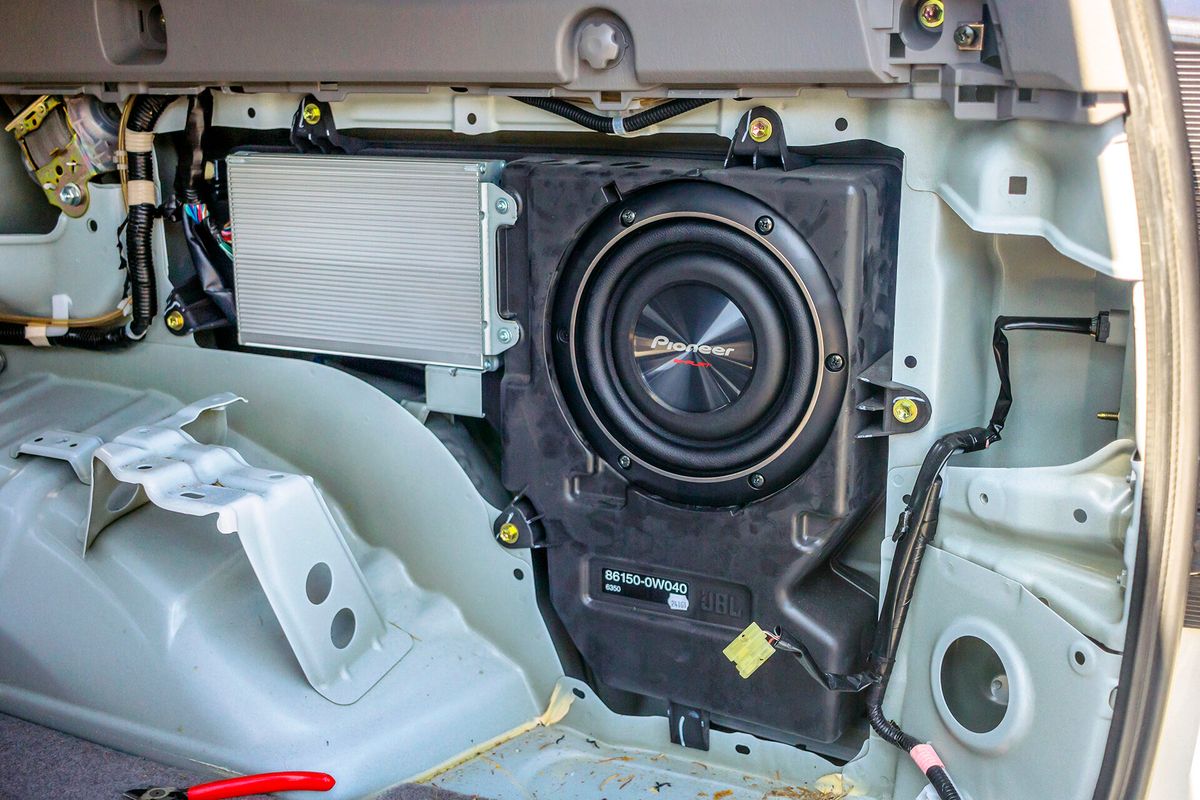
When a whine or clicking rises and falls with the tachometer, the root cause is almost never the stereo itself but the vehicle’s electrical system, so the first stop should be the alternator, ignition components, and spark plug wires. A classic symptom is a car stereo makes noise when accelerating, which happens because the charging system injects ripple into the 12-volt supply that the audio gear amplifies, so if you experience this, you will want to read the article about car stereo makes noise when accelerating to trace the exact source. The same underlying issue answers why a subwoofer hum when accelerating, since the amplifier’s power supply tracks the alternator’s fluctuating output and a ground loop between the head unit and the amp can make it far louder, making the guide on subwoofer hum when accelerating essential for isolating the fault. Before buying any filter, run a temporary ground jumper directly from the stereo chassis to a bare-metal point on the car body, because a poor ground connection often mimics a failed component. To finally get rid of the engine noise in my car stereo, reroute the RCA cables and the power wire down opposite sides of the cabin, since running them together lets the high-current feed couple directly into the unshielded signal conductors, and the dedicated piece on how to get rid of the engine noise in my car stereo provides the step-by-step shielding and filtering methods you need.
- car speakers making static noise when radio is off — Car Speakers Making Static Noise When Radio Is Off
- get rid of the engine noise in my car stereo — How Do I Get Rid Of The Engine Noise In My Car Stereo
- car stereo makes noise when accelerating — Car Stereo Makes Noise When Accelerating
- subwoofer hum when accelerating — Why Does My Subwoofer Hum When I Accelerate
Handling unusual pitch and driver problems
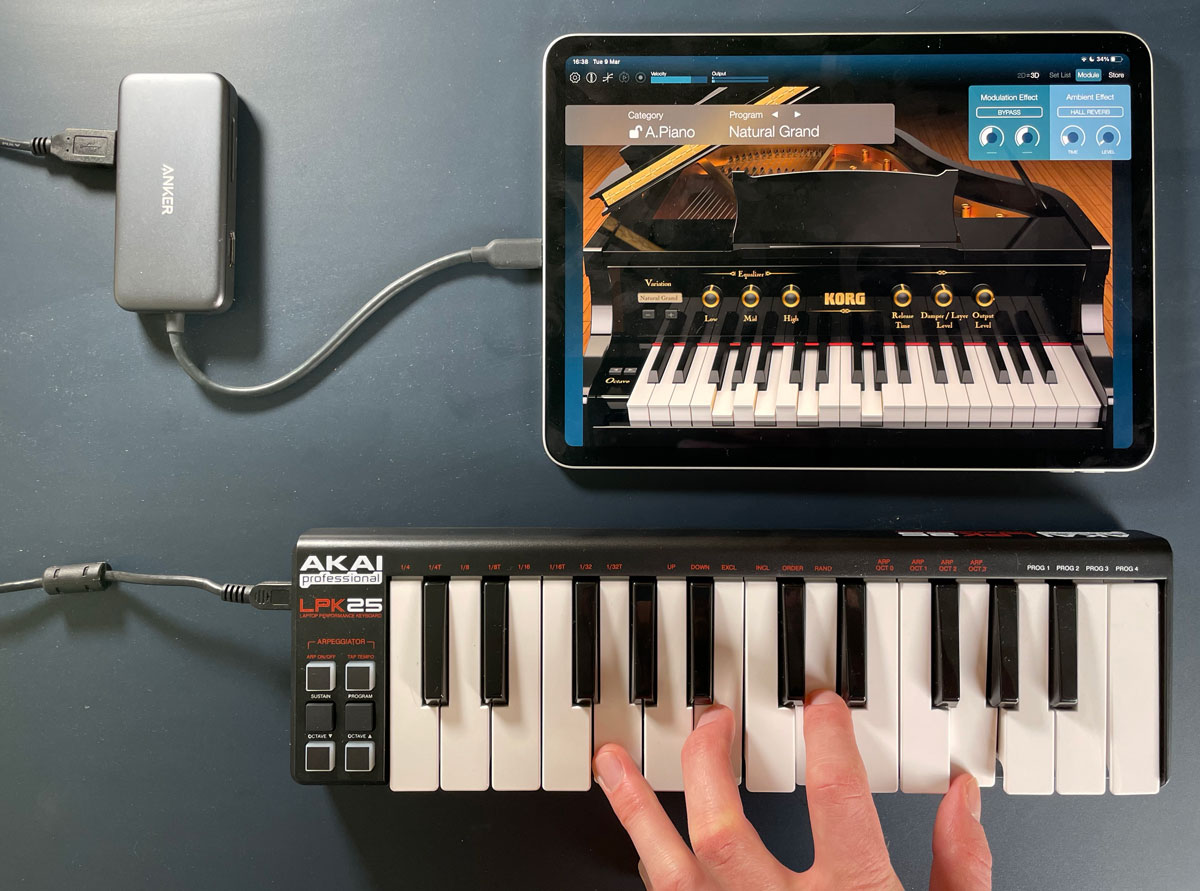
When you encounter an M-Audio interface shifting pitch, first check for stray pitch bend automation by opening your project’s automation lanes and stripping out any unintended pitch bend data that may have been recorded or drawn in by accident. If the warble persists, run a MIDI Monitor utility to see whether the pitch wheel itself is sending erratic values without being touched. M-Audio says dust or debris around the pitch wheel assembly can cause the problem, so carefully clean around the pitch wheel with compressed air if available.
When the problem is not pitch but clicks, pops, or outright distortion on your M-Audio hardware, the first stop is the Driver Control Panel, which you can reach through Windows Control Panel under Hardware and Sound or directly from the M-Audio folder in the Start menu. Inside that panel, raise the buffer size; M-Audio gives 256 samples as the starting point, though there is no default buffer setting that will work for everyone. If you still hear glitches, a deeper driver conflict may be at play, so open Device Manager and look for any warning icons such as yellow triangles and update those drivers. If needed, disable one non-essential device at a time in Device Manager, rerun LatencyMon, and see whether latency improves. Check View > Resources by type in Device Manager and expand Interrupt request (IRQ) for hardware conflict checks.