Earbuds
How To Connect Earbuds To Android
Modified: 22 January 2024
Table of Contents
First steps to connect earbuds
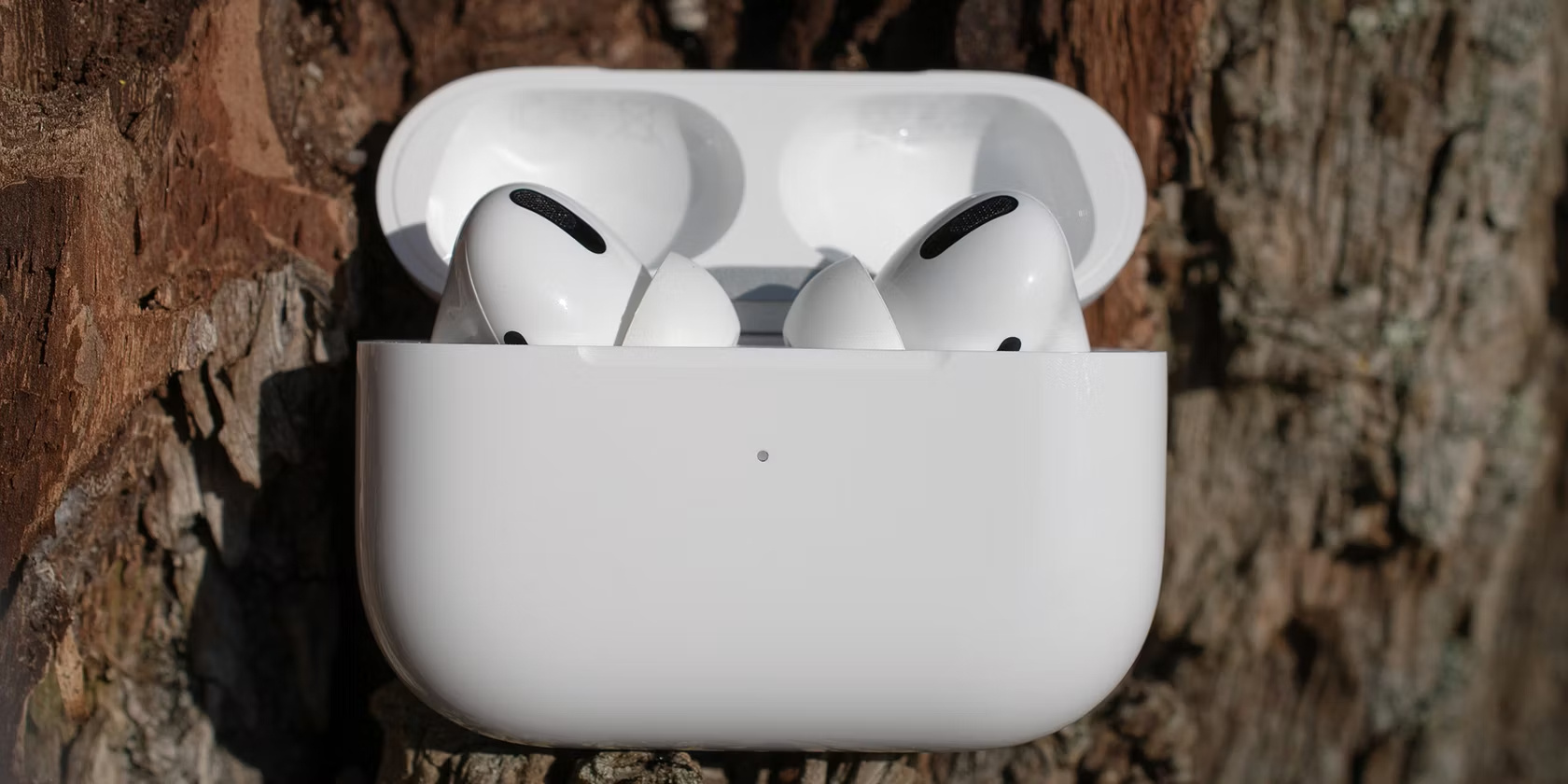
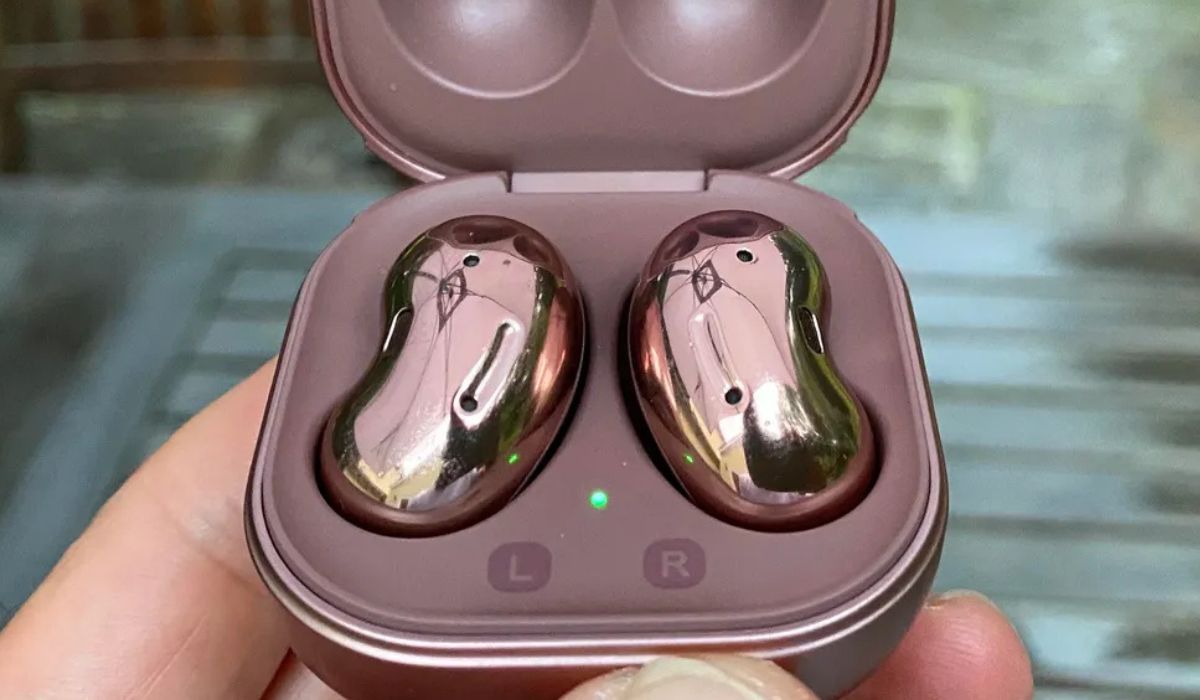
To connect earbuds successfully, it helps to know how to physically handle them first. Place them in the charging case and close the lid for a few seconds, then open it. This is how you turn on Samsung earbuds and make them ready for pairing. Some models also require pressing the button on the bottom of the case for three seconds.
Once they are awake, you need to put in Galaxy earbuds correctly so the sensors register your ears. Hold each bud with the microphone and tip facing downward, matching the L and R markings, and insert them with the wing tip pointing up before rotating gently until they feel secure. If you are using the latest Samsung earbuds, such as the Galaxy Buds3 Pro, orient the stem microphone toward your mouth and adjust for a comfortable seal. With a proper fit, the touch-sensitive sensor detects they are in place and emits a confirmation sound.
To turn up volume on Samsung earbuds, you can use your phone or PC, but controlling it from the buds themselves often requires setup first. Open the Galaxy Wearable app, tap Touch and hold, choose Left or Right, and assign Volume up. This option only appears while the earbuds are in your ears and linked.
Connecting to an Android phone
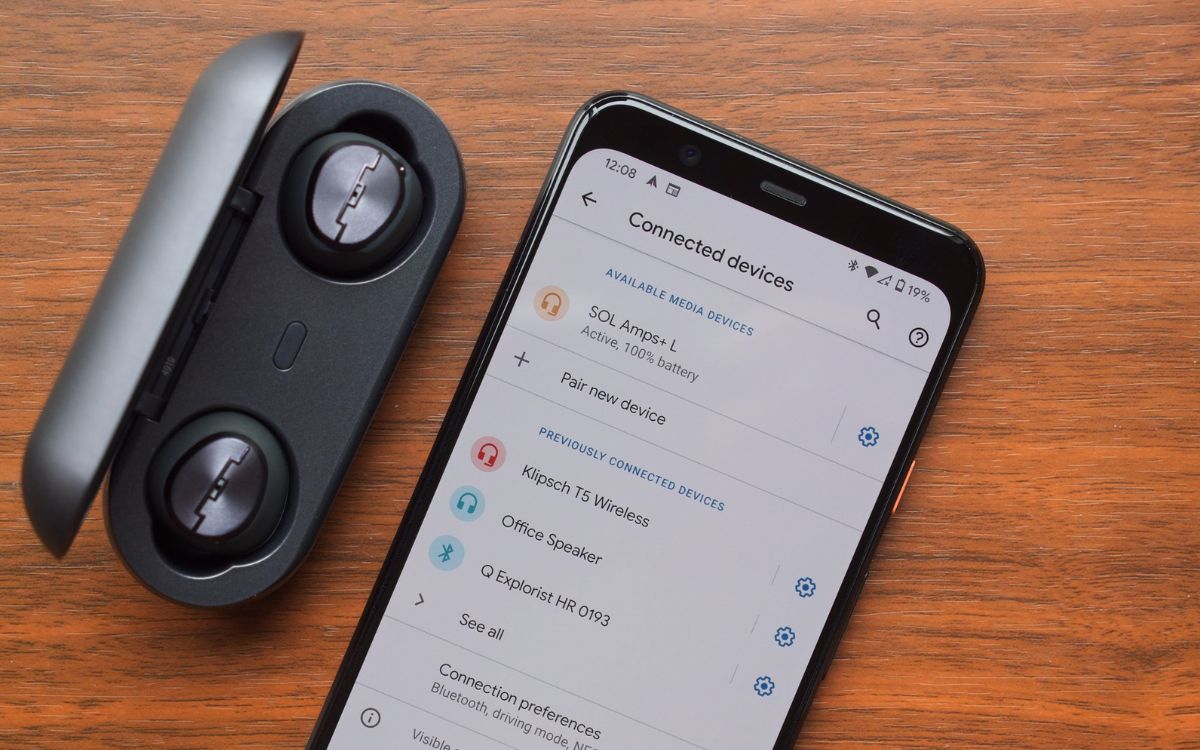
To connect earbuds to Android, open your phone’s Settings and navigate to Connected devices. Then tap the earbuds when they appear in the available devices list. If you specifically need to pair earbuds to Samsung phone and are using Galaxy Buds, place the buds in the charging case. Close the lid for five to six seconds and open it again. They will automatically enter Bluetooth pairing mode and show up on your Galaxy device. If you want to pair Samsung akg earbuds. When you already own the company’s audio wearables and want to use Galaxy earbuds with a non-Samsung Android phone, download the Galaxy Wearable app from the Google Play Store first for Galaxy Buds or Galaxy Buds+. Then hold both touchpads while the buds are in your ears until you hear the pairing sound. The process to connect Google earbuds is even more direct. Just open your phone’s Bluetooth menu and tap Google Pixel Buds from the list. To pair Samsung earbuds that are currently linked to another device, insert them into your ears. Press and hold both touchpads for a few seconds to force them back into pairing mode.
Connecting to a Windows laptop or PC
Whether you need to connect wireless earbuds to a PC for a video call or just want to listen to music from your laptop, the core process in Windows is consistent across brands. Open Settings, go to the wireless peripherals menu, make sure the radio is turned on, select Add device, and choose the correct option from the list. When you want to connect my JBL earbuds to my laptop, put them into pairing mode and add them from the Windows Bluetooth device list. The steps to connect my earbuds to my laptop remain unchanged for most models, but remember that if the buds are still actively streaming from your phone, the PC will not see them until you disconnect that first link. To pair my Samsung earbuds to my laptop, open Settings on the laptop, go to Bluetooth & devices, select Add device, choose Bluetooth, and then select the Galaxy Buds from the available list. To connect Apple earbuds to laptop, put the AirPods into pairing mode with the case button until the light flashes white, which makes them appear in the available hardware list, then pair from Windows Bluetooth settings.
Connecting to other computers
When you need to connect earbuds to Mac, open System Settings from the Apple menu. Click Bluetooth in the sidebar. Then put your audio gear into discovery mode so they appear in the nearby list.
The process to connect earbuds to Chromebook follows a similar path. Click the time in the bottom-right corner. Select the wireless icon. Choose your earbuds once the Chromebook detects them.
For owners of Jabra audio wearables, one documented method to pair Jabra earbuds to computer relies on Microsoft Swift Pair. This feature is available on Windows. Turn on Swift Pair in the Bluetooth and other devices settings. Remove the earbuds from the charging case or press Left and Right together. Then press and hold both buttons for three seconds until the LEDs flash blue. Place the earbuds close to the computer. Select Connect in the Windows notification that appears.
If you are using a Mac or Chromebook, the standard wireless linking menu is your starting point. Keep in mind that any active link to your phone will block the handshake. You must sever that bond first.
Connecting to TVs and other screens
When you want private audio from a big screen, the path to pair earbuds to TV starts in the television's sound output menu, not in a standard Bluetooth list, and your earbuds must be in discovery mode before the television will see them. If you own a Samsung model, the specific route to pair earbuds to Samsung TV goes through Menu, then Settings, Sound, Sound Output, and finally Bluetooth Speaker List, where you select your buds and confirm Pair and Connect. Some older Samsung sets use a different sequence under Speaker Settings instead, so check your model year before assuming incompatibility. For viewers who stream through a set-top box, you can also connect wireless earbuds to Roku TV by pressing Home on the Roku remote, then navigating to Settings, Remotes & devices, Wireless headphones, and Add new wireless headphones. The scan can take up to 30 seconds, and if you are already watching something, the Star button on the remote offers a faster shortcut to the wireless headphone menu. You would want the article on how to pair earbuds to TV to avoid confusion between TV-specific Bluetooth menus and standard phone pairing. Similarly, the guide to pair earbuds to Samsung TV is worth reading so you don't miss the model-specific menu variations that can block a successful connection. And the piece on how to connect wireless earbuds to Roku TV is essential for anyone who wants the quickest shortcut to private listening without digging through every settings submenu.
- connect wireless earbuds to Roku TV — How To Connect Wireless Earbuds To Roku TV
- pair earbuds to Samsung TV — How To Pair Earbuds To Samsung TV
- pair earbuds to TV — How To Pair Earbuds To TV
Pairing specific earbud brands
When you need to pair Sony earbuds, the exact menu path depends on your phone's operating system. Android users should open Settings, then Connected devices or Device connection. Next, follow Connection preferences and Bluetooth. Once your earbuds appear in the list, tap the name and then tap PAIR. The word Active confirms the link is live.
Owners trying to pair LG stereo headset models like the Tone series can follow a standard process. Put the headset into pairing mode. Then open your device's Bluetooth menu to search for new gadgets. Select the headset from the list. If you are prompted for a code with certain models, enter 0000.
To connect Sharper Image earbuds, remove them from the charging case so they automatically enter discovery mode. Keep them within 3 feet of your phone or computer. Look for the specific model name, such as SI TWS or SOUNDHAVEN ANC, in your device's Bluetooth scan results. If you need to connect Packed Party earbuds.
Managing connections and switching devices
When your earbuds refuse to pair with a new device, the most common culprit is an active connection you forgot about. Most earbuds can only maintain a live link with one gadget at a time. You often need to disconnect earbuds from phone before a laptop or tablet will even see them. On a Galaxy handset, the quickest route is opening the Galaxy Wearable app, tapping Menu, and then tapping the chain-shaped Disconnect icon. You can also simply drop the buds into their charging case and close the lid. This action causes them to unpair from the connected device.
Once you have freed them up, the steps to connect Samsung earbuds to iPhone follow the standard wireless handshake flow. There is one extra detail for this process. After opening the charging case, you may need to press the button on the bottom of the case for three seconds. From there, head into Settings on the iPhone and look for the relevant menu. Make sure the toggle switch is on, and look for your buds under Other devices. The manufacturer documents this for Galaxy Buds and Buds+. For the Galaxy Buds Live and Galaxy Buds+ models, Samsung documents iPhone 7 or later running iOS 10 or higher.
Switching back and forth between an iPhone and an Android tablet is straightforward once both are paired. You do need to manually grab the connection each time. On a Galaxy phone, you can swipe down the Notification Panel and long-press the Bluetooth icon. Then select the earbuds from the paired list. The Galaxy Wearable app also handles this task. Open the menu and tap the unit you want to use. The app will link to it automatically. Just keep in mind that the Auto switch feature is not available on iOS hardware. You will always need to initiate the handoff yourself when moving away from an Apple screen.