Home>Events & Info>Controlling Playback Speed in Apps
Events & Info
Controlling Playback Speed in Apps
Modified: 3 October 2026
Table of Contents
Understanding music playback speed basics
Before you move a slider to change your music playback speed, it helps to know exactly what you are changing. The term playback rate simply refers to the speed at which your audio file is being read compared to how it was recorded, and you would want to read the article "What Is Playback Rate" to understand the technical distinction between speed and pitch. Most apps express this as a multiplier. In that system, the normal playback speed is always 1x. That is the original tempo with no modification applied. If you have ever looked for these controls in a dedicated playback tab on a desktop app, you might be surprised by the mobile layout. On a phone, the control rarely lives on the main transport bar. In Samsung Music, for instance, you adjust the speed by tapping More options, then Settings, and using the Play speed control. From there, you drag the Play speed control anywhere from half the original tempo at 0.5x up to double time at 2.0x. On a Mac, the Playback tab found under Music > Settings is reserved for spatial audio features like Dolby Atmos. It does not contain a tempo slider. Looking there for a speed adjustment will lead you to the wrong menu entirely.
Speeding up or slowing down streaming music
Before you adjust anything, keep the site-wide tip in mind. If you are working with a variable-bitrate MP3, enabling a time-stretching option will keep the pitch from drifting as the tempo shifts. On the popular streaming platform, you can change playback speed Spotify offers for podcasts and audiobooks, not music tracks. While listening to a podcast or audiobook, tap the Now Playing bar at the bottom of the screen and look for the 1x button. That is the speed control, which also clarifies where playback on Spotify lives for this feature. SoundCloud works differently. TIDAL takes yet another approach. If your goal is to increase sound volume on Tidal music streaming service, head to My Collection, open the app’s preferences, and select Audio & Playback. From there, turning off the Normalize volume toggle can increase perceived loudness without touching the tempo at all.
Adjusting speed for podcasts and spoken audio
When the priority is making every word count, the ability to slow down podcast speed without introducing a muddy warble is essential. The biggest variable is usually the file itself. That site-wide tip about variable-bitrate MP3s applies doubly here. A distorted pitch can make speech unintelligible long before the tempo feels unnatural.
On an iPhone, Apple Podcasts bakes the control directly into the Now Playing screen. Just tap the Playback Speed button to pick from the standard multipliers. You can also touch and hold the current speed to slide up or down. This gives a precise granular adjustment, and iOS 26 expands the range to 0.5x to 3x. If you listen to a few regular shows, you can lock that preference per podcast by going into the show’s options and choosing Custom for This Show. That menu also lets you independently toggle the Enhance Dialogue option for extra clarity.
The same logic applies when you need to speed up MP3 playback of a lecture or audiobook. The goal is a faster pace that still sounds natural. The exact menu path to change playback speed in Winamp is not available.
Managing speed in desktop media players
On a Mac, QuickTime Player hides its speed options inside the playback window rather than in a menu bar, which is why you would read the article on how to increase playback speed in quicktime to master these hidden controls. While a video or audio file is open, clicking the playback-speed control cycles through 2x, 5x, 10x, 30x, and 60x. Option-clicking the same control lets you step through smaller increments from 1.1x to 2x for finer control. You can also set the tempo before playback starts by clicking the control and choosing Playback Speed from the list.
In Windows Media Player, the path is a bit more buried, which is why you would want the article on how to change playback speed Windows media player to follow the exact steps. Switch to Now Playing view and right-click an open space in the player. Open Enhancements followed by Play speed settings to reveal the slider. Dragging it adjusts the rate, though the actual limit varies by version and media type. Some setups cap audio at 1.4x while others allow a range from 0.5x to 2.0x. If you need to pick a speed between the labeled presets, clear the Snap slider to common speeds checkbox in that same dialog.
The Normal button is always there to reset the rate if the pitch starts to feel off.
- change playback speed Windows media player — How To Change Playback Speed Windows Media Player
- increase playback speed in quicktime — How To Increase Playback Speed In Quicktime
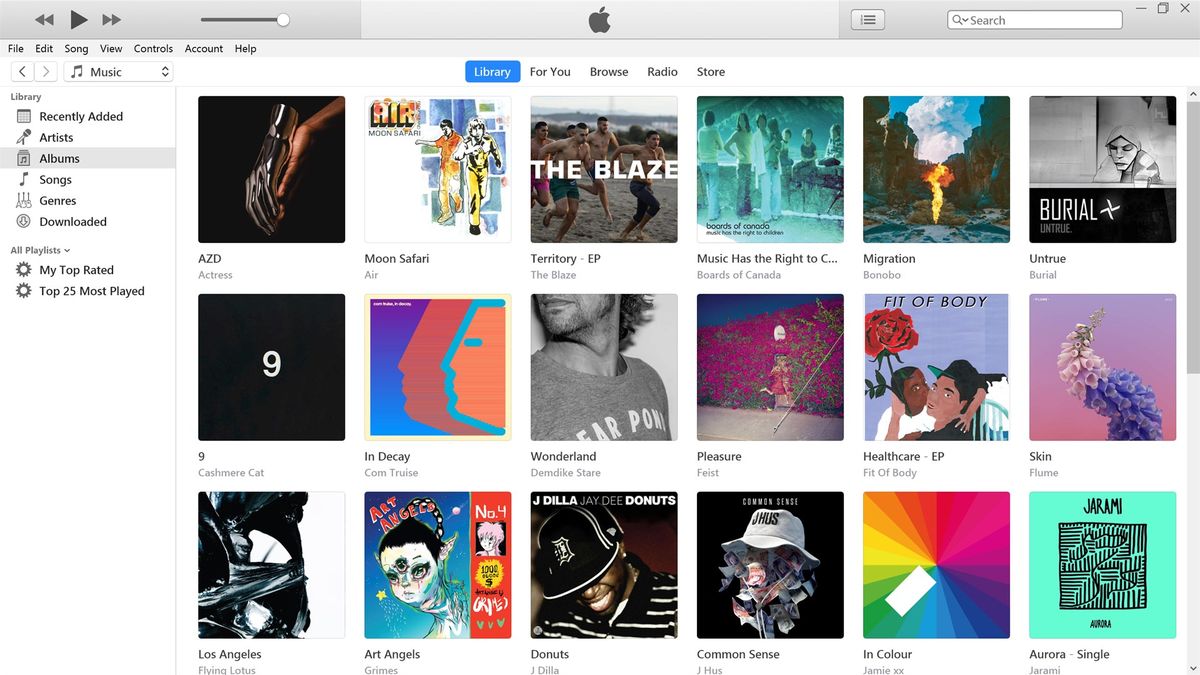
- adjust playback speed on iTunes — How To Adjust Playback Speed On iTunes
Editing and recording with speed changes
When your workflow moves beyond simple listening into editing or live broadcasting, speed controls shift from a convenience to a creative tool. To change playback speed on Audacity, start by enabling the View > Toolbars > Play-at-Speed Toolbar. This reveals a dedicated slider you can double-click to set a precise tempo to three decimal places. Once you set your rate, you can listen to playback on Audacity by clicking the Play-at-Speed button in that same toolbar, which restarts playback at the speed set by the slider. Holding Shift while you click it engages a looping mode. This is useful for rehearsing a tricky passage without interruption. Keep in mind that this feature alters pitch alongside tempo in the app. A dramatic slowdown will drop the tonal quality unless you later apply a separate time-stretch effect.
In a live streaming environment, the challenge is often about creating space for your voice rather than altering the music's pace. The standard technique to lower music volume when talking in OBS streaming involves opening the Filters window for the audio source you want to reduce. Add a Compressor filter there. Then set the Sidechain/Ducking Source to your microphone. This tells OBS to automatically dip the music level whenever you speak. Your commentary gains a clean, professional presence without manual fader touches.
Controlling Spotify playback and quality settings
Before you adjust any tempo controls, remember that variable-bitrate MP3s can distort when sped up in older players unless a preserve-pitch option is active. The streaming platform’s own options focus less on speed and more on where and how clearly you hear the music. To switch playback device on Spotify, start a song, tap the device icon at the bottom of the screen, and select any compatible gadget on the same Wi‑Fi network or paired over Bluetooth, which is helpful when you want to learn how to switch playback device on Spotify. If you want to change playback quality Spotify desktop, click your profile picture, open the preferences panel, and pick your preferred rate under Audio Quality, a step you would follow if you read how to change playback quality Spotify desktop. For those trying to get audiophile sound from Spotify, the highest tier available is Lossless, which you can enable in the Media quality section and refine by toggling exclusive mode in the Playback area when an external DAC is attached, exactly as described in the article on how to get audiophile sound from Spotify. Understanding on-demand playback Spotify is effectively handled through Spotify Connect, turning any chosen device into a remote-controlled speaker from your phone, which is the focus of the article on what is on-demand playback Spotify. You can turn off playback on YouTube and go from a downloaded song to home on playback app.