Home>Devices & Equipment>Pairing Bose and Beats Earbuds
Devices & Equipment
Pairing Bose and Beats Earbuds
Modified: 3 October 2026
Table of Contents
Start here: pair earbuds fundamentals
To pair earbuds for the first time, the process follows a consistent rhythm, even if the button you press changes from brand to brand. On any phone, you start by opening the device’s connection preferences and making sure the wireless radio is toggled on. Beats earphones will try to auto-pair when held next to a supported iPhone or iPad, and for Beats Studio Buds and Beats Studio Buds+, you may also need to confirm that Location services are active. Once the earbuds are flashing their pairing light, you can sync Bluetooth earbuds by selecting their name from the list on your screen. If you ever need to pair earbuds together again after a reset, consult the model-specific instructions to re-enter discovery mode. Jabra earbuds follow a similar logic, though the exact button combination varies by model, with an Elite 75t requiring a three-second press of both earbud buttons. Because the initial handshake differs slightly across brands, dedicated walkthroughs detail the specific rituals needed to connect to beats earbuds or connect to Jabra earbuds, just as they do to connect ugreen earbuds or connect jaybird earbuds.
Pairing with iPhones and iPads
When you need to connect bose earbuds to iPhone, the process starts in the Bluetooth panel rather than with a pop-up animation. Open Settings > Bluetooth and make sure the switch is green. Hold your Bose case button until the light pulses blue. The earbuds will appear under Other Devices where you can tap the name to finish.
For QuietComfort Earbuds II specifically, Bose also offers an app-first route. Tap the plus icon and choose Headphones, Earbuds, Portable Speakers, and Frames before selecting your model from the list.
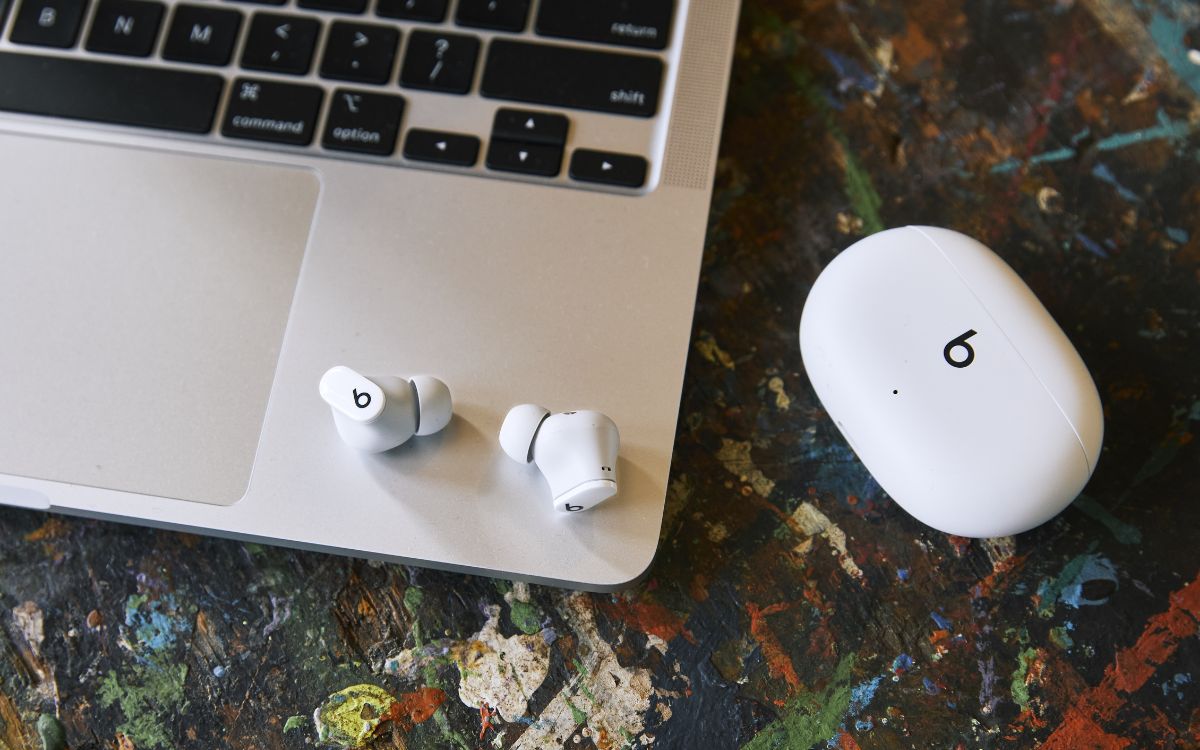
The experience shifts noticeably when you pair beats earbuds to iPhone because most models use a setup animation instead of the Bluetooth menu. Open the case lid with the buds seated inside. Hold it next to an unlocked iPhone or iPad. A setup animation slides up from the bottom of the screen. Beats Studio Buds and Studio Buds + are ready to pair straight out of the box this way. For Beats Flex, turn them on and hold them near the device. If the animation does not appear, you can fall back to the standard Bluetooth menu and select the earbuds from the list.
Beyond these flagship lines, the same core pairing logic applies across a wider family of true wireless earphones. The steps that follow break out model-specific instructions for popular alternatives so you can jump directly to the earbuds sitting in front of you. For instance, if you need to pair beats flex earbuds, the process mirrors the animation-based approach described above, saving you time. Similarly, when you want to pair bose sport earbuds, the Bluetooth panel method ensures a stable connection during workouts. If you own the latest flagship, you can pair beats pro earbuds to access premium sound features, while those seeking noise cancellation can pair bose qc earbuds for an immersive listening experience. For budget-friendly options, you can pair boltune earbuds to enjoy reliable connectivity without the premium price, or pair mpow earbuds to get quick, hassle-free pairing on a budget. Finally, if you have any Bose model, you can pair bose earbuds using the consistent Bluetooth steps outlined above, ensuring you never lose your connection.
Pairing with Android phones
When you pair Beats earbuds to Android phone, supported models can use Google Fast Pair. Supported Beats earphones can use Google Fast Pair. Just open the charging case with the buds inside and hold it near your unlocked phone. Follow the animation that appears on screen. If that prompt never shows up, head to Settings > Connections > Bluetooth and look for the Beats entry in the device list. Tap it and choose Pair to complete a standard wireless handshake. The Beats app is available on Google Play for firmware updates and extra controls, but you do not need it for basic pairing. When you pair Sony wireless stereo headset models on Android, the exact steps depend on which earbuds you own. Most follow a similar pattern. Open Settings > Device connection > Bluetooth and turn the radio on. Wait for the headset name to appear on the Android screen. If a passkey is requested, enter 0000. Some Sony models, like the WF-C500, require you to remove both earbuds from the charging case first. Wait for the blue indicators to flash before the phone will detect them. Check your specific model if the name does not show up right away.
Connecting to MacBooks and laptops
When you sit down at a laptop, the biggest variable is whether the earbuds are already tied to your ecosystem. The same general flow applies when you pair bose earbuds to laptop machines running Windows: head to Start, open the Bluetooth & devices panel, click Add Device, choose the wireless option, and find the earbuds in the list, which is exactly why you would want the guide on how to pair bose earbuds to laptop. If your PC lacks built-in wireless hardware, plugging in a USB adapter is the documented workaround and Windows will install the necessary driver automatically.
Pairing Bose earbuds with a phone or tablet follows a similar sequence.
Managing active connections becomes important once several gadgets are in the mix.
The experience shifts with Apple-owned Beats because of how the H1 or W1 chip handles the handshake. To pair beats earbuds to PC, you will need to put the earphones into discovery mode manually and look for their name in the standard Windows add-device list to complete the connection, which is why the guide on how to pair beats earbuds to PC is so valuable for Windows users.
Beats earphones with an Apple chip unlock deep integration across the entire ecosystem.
Resolving common hiccups prevents a minor glitch from turning into a full reset, and removing the entry from the host’s device list and re-pairing from scratch clears out corrupted handshake data.
- connect beats earbuds to MacBook — How To Connect Beats Earbuds To MacBook
- connect bose earbuds to mac — How To Connect Bose Earbuds To Mac
Using earbuds with audio gear and TVs
Getting audio from a sound bar into wireless earbuds works only if the bar can send a signal outward, and many TVs can only receive it. If your setup supports transmission, the simplest way to connect Bluetooth headphones to sound bar hardware from Yamaha is through the MusicCast Controller app. Open the playback screen, touch the sound settings in the lower right, and enable the transmission feature to select your earbuds from the list. On RX-V Series or AVENTAGE receivers, you can also press the settings button on the remote and navigate to the Bluetooth menu on the TV screen.
A different challenge arises when you need to connect Bluetooth headphones to audio interface gear. Most dedicated interfaces lack wireless output entirely. In that scenario, you would typically pair the earbuds directly with the computer or mobile device feeding the interface instead.
Bose smart soundbars take a more integrated approach through the Bose app. Supported models like the Smart Ultra Soundbar can create a personal surround mix with Ultra Open Earbuds. If you own compatible hardware, you may also want to read how to connect to Bose SoundLink Air digital music system to stream your audio library directly to the earbuds without relying on a separate source.
For laptop users, the path is more direct. To connect Bose QuietComfort Earbuds to laptop computers, put the buds in pairing mode, then open your system's wireless connection panel and choose them from the device list.
Sport and specialized earbud setup
When you shift from everyday listening to a workout, the hardware often demands a more deliberate setup routine. You can use Bose Sport Earbuds with the free Bose app on iOS or Android. The app will not detect the buds unless you grant the permissions it asks for on first launch. On an iPhone, that means checking the Privacy section of the system configuration for the wireless and location toggles. Android users must enable Your location from the App Info permissions screen. Once those are allowed, press and hold the pairing button inside the charging case. Wait for the status light to pulse blue and the voice prompt to say “Ready to connect.” Then tap the + icon on the My Bose screen to add them.
Specialized audio gear sometimes relies on companion software that goes beyond a simple handshake. If you want to achieve the best possible fidelity from your wired headphones, you can setup sound blaster connect 2 for audiophile headphones, which gives you precise control over equalization and surround sound profiles.