Home>Production & Technology>Connecting Computers to Stereo Systems
Production & Technology
Connecting Computers to Stereo Systems
Modified: 3 October 2026
Table of Contents
Understanding your stereo system and computer connection
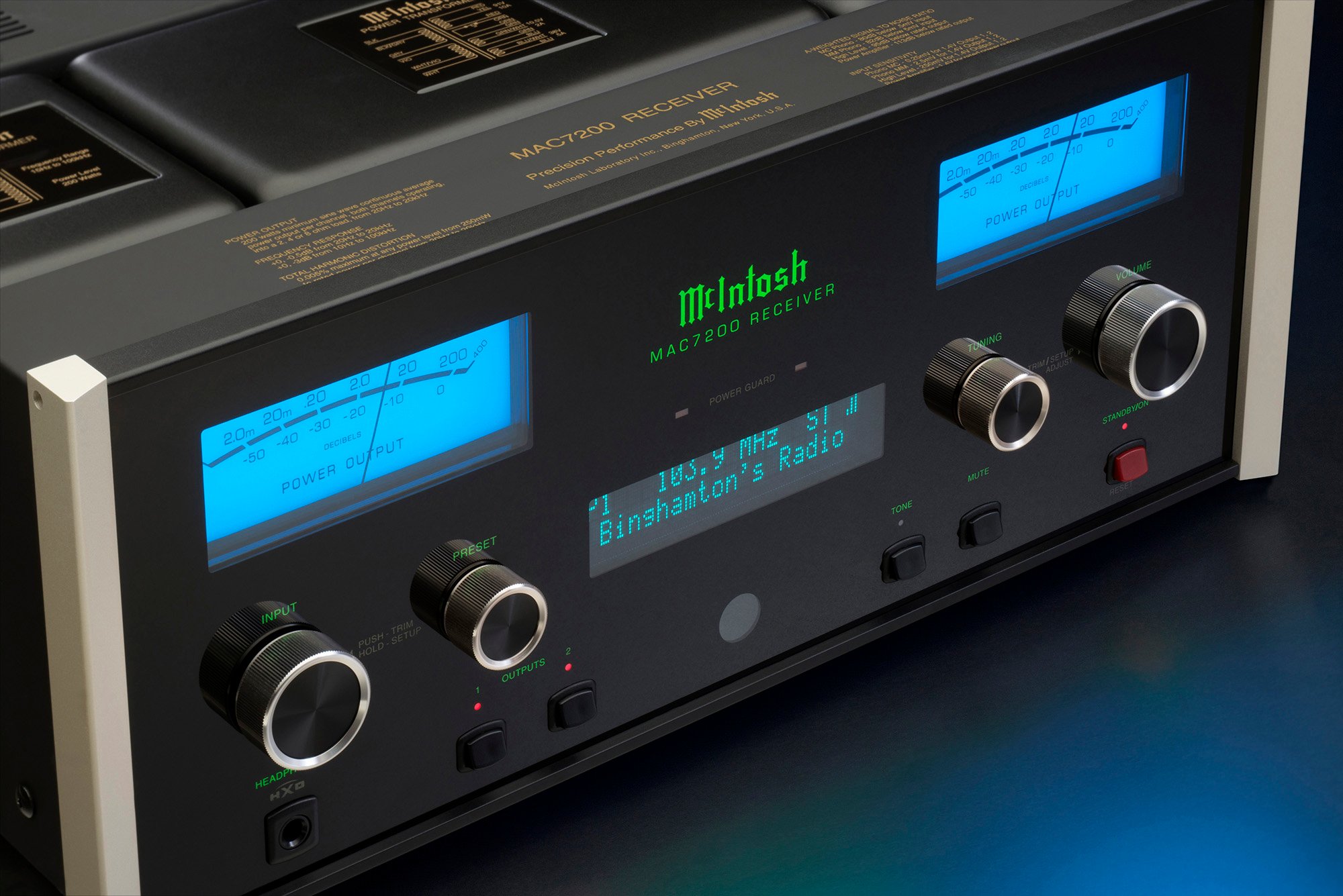
When you want to connect a computer to stereo equipment, the process is straightforward because computers already output a line-level signal you can simply feed into an available input like Aux or CD. At the heart of any music setup is a stereo receiver. This two-channel unit is designed to power left and right speakers for dedicated music playback rather than surround sound. When you decide to choose a stereo receiver, focus on matching its power output and impedance rating to your speakers. Also confirm the unit has enough inputs for your planned sources. While there is no single formula for the best home stereo system, a solid foundation always starts with three essentials. You need a capable amplifier, a matched pair of loudspeakers, and your music sources. If you later want to add wattage to my stereo receiver to drive larger cabinets, know that you cannot simply inject extra power into an existing unit. Instead, you replace it with a more powerful model whose specifications already align with your loudspeakers' requirements. For shaping your sound further, you might eventually hook up an equalizer to a home stereo. In more complex multi-room setups you could even connect two stereo receivers together to distribute audio across different zones.
Connecting a computer to a stereo or receiver
Getting music from your library to your living-room speakers starts with a single cable choice. Most computers already output a line-level signal. The simplest way to connect computer to stereo receiver is with a 3.5 mm to RCA cable. Plug the mini-jack into your laptop’s headphone or audio output. Then connect the red and white RCA plugs to a free input like Aux or CD on the unit. Finally, select that source.
If you are wondering, “How do I hook my computer to my stereo for cleaner sound,” an AV receiver with an HDMI input can pull both audio and video over one cable. Many two-channel integrated amps also offer optical or digital coaxial ports for a direct digital link. When you want to play music from computer to stereo system through a dedicated external converter, a USB connection to a DAC bypasses the computer’s internal audio entirely. This feeds the amplifier a pristine analog signal. For a quick, no-fuss setup in a small room, you can even connect stereo speakers to headphone jack using that same 3.5 mm to RCA cable. However, the built-in amplifier in a receiver will always deliver far more controlled volume and headroom than a headphone output alone.
Connecting a computer to surround sound
Moving to multi-channel audio means you need to connect PC to surround sound receiver using more than a single stereo cable. Most modern AV units accept HDMI from a laptop or desktop, carrying up to 7.1 channels of uncompressed audio. If your machine lacks HDMI, look for a set of 3.5 mm analog outputs on the sound card; true 5.1 requires three jacks, typically color-coded green for front left and right, black for rear surrounds, and orange for center and subwoofer. You then run three separate 3.5 mm to RCA cables to the corresponding multi-channel analog inputs on the home theater hub. For those who want to hook up surround sound to computer without a full AV unit, a powered set of transducers designed for PC use offers a simpler path. When you hook up surround sound to laptop through the headphone jack alone, you will only get matrixed stereo unless the portable machine has a dedicated multi-channel output. When you connect Logitech surround sound speakers z506 to computer, the system includes the necessary cables, but the source machine must have a 5.1-enabled sound card with those three distinct green, black, and orange jacks to deliver discrete surround channels.
Using specific audio sources and outputs
Beyond a computer, you may want to connect DVD player to stereo amplifier for listening to concerts or CDs by running standard RCA cables from its left and right audio outputs to a pair of matching inputs on the amplifier. In a stereo setup, you cannot properly connect center speaker to stereo amplifier because a two-channel unit lacks the dedicated amplification and processing for a discrete dialogue channel, which would need a surround receiver instead.
When your goal is to make computer sound go through TV with audio cable, the behavior depends on your operating system and hardware, though some platforms like Android TV support multiple concurrent audio outputs. For wireless playback, you can hook up streaming music to your home stereo by sending audio from an iPhone or iPad to an Apple TV connected to your receiver: open Control Center, tap the AirPlay control, and select the Apple TV as the output. If you are using an Apple TV 4K itself as the source, you can route its audio to HomePod or other AirPlay-enabled speakers on your network by going to Settings > Video and Audio > Audio Output, or by opening Control Center on the remote and selecting the speaker there. Remember that if you set AirPlay-enabled speakers as the temporary output, navigation clicks are not supported and the selection resets when the device sleeps.
Connecting speakers directly to a computer
When your setup does not include a receiver, the most direct path is to connect stereo speakers to computer hardware using the correct output port. A standard 3.5 mm metal plug cable carries the line-level signal from a headphone or audio output jack straight to the input on a pair of powered monitors that have their own built-in amplification. For those who want to use audiophile speakers on PC without a reciever, passive bookshelf models will still require an external amplifier or a compact desktop DAC/amp, because a computer’s output alone cannot drive them. Knowing exactly where to plug the audio cable for speakers in a mac eliminates guesswork, as Apple identifies the port as the audio out, headphone, or analog audio out jack and confirms it works with self-powered speakers and other audio equipment. Once the cable is seated, you open Apple menu > System Settings > Sound > Output and select the external speakers from the list, where Apple notes that plugged-in devices often appear as Headphones. You can also go into Audio MIDI Setup, Control-click the device and choose Use This Device for Sound Output to route playback correctly.
Setting up a complete stereo system
When you set out to connect a kenwood home stereo, you will want to read a dedicated guide on how to connect a kenwood home stereo to ensure you match your computer's output to one of the unit's standard line-level inputs without damaging the equipment. Most desktop and laptop machines send a clean signal from a 3.5 mm headphone jack, so a simple cable with a stereo mini-plug on one end and a pair of RCA connectors on the other lets you reach the Aux, CD, or Tape jacks on the back panel. On a Kenwood model that provides an on-screen setup, the path to configure the listening environment begins when you press HOME or touch HOME on the popup menu, then touch Audio. From there, you will typically select Speaker / X’over or Audio SETUP to match the device to your room. If you plan to send music from an iPhone, you can avoid cables entirely by opening Settings > Bluetooth on the phone and pairing it with the Kenwood unit, provided it supports wireless playback. For a direct digital link, plugging the iPhone into the stereo's USB port with an Apple cable may give the cleanest sound if the stereo supports this connection, and it also keeps the device charged while you listen.