Home>Production & Technology>Managing Digital Music and MP3 Files
Production & Technology
Managing Digital Music and MP3 Files
Modified: 3 October 2026
Table of Contents
Getting music and audio onto your devices with digital music management
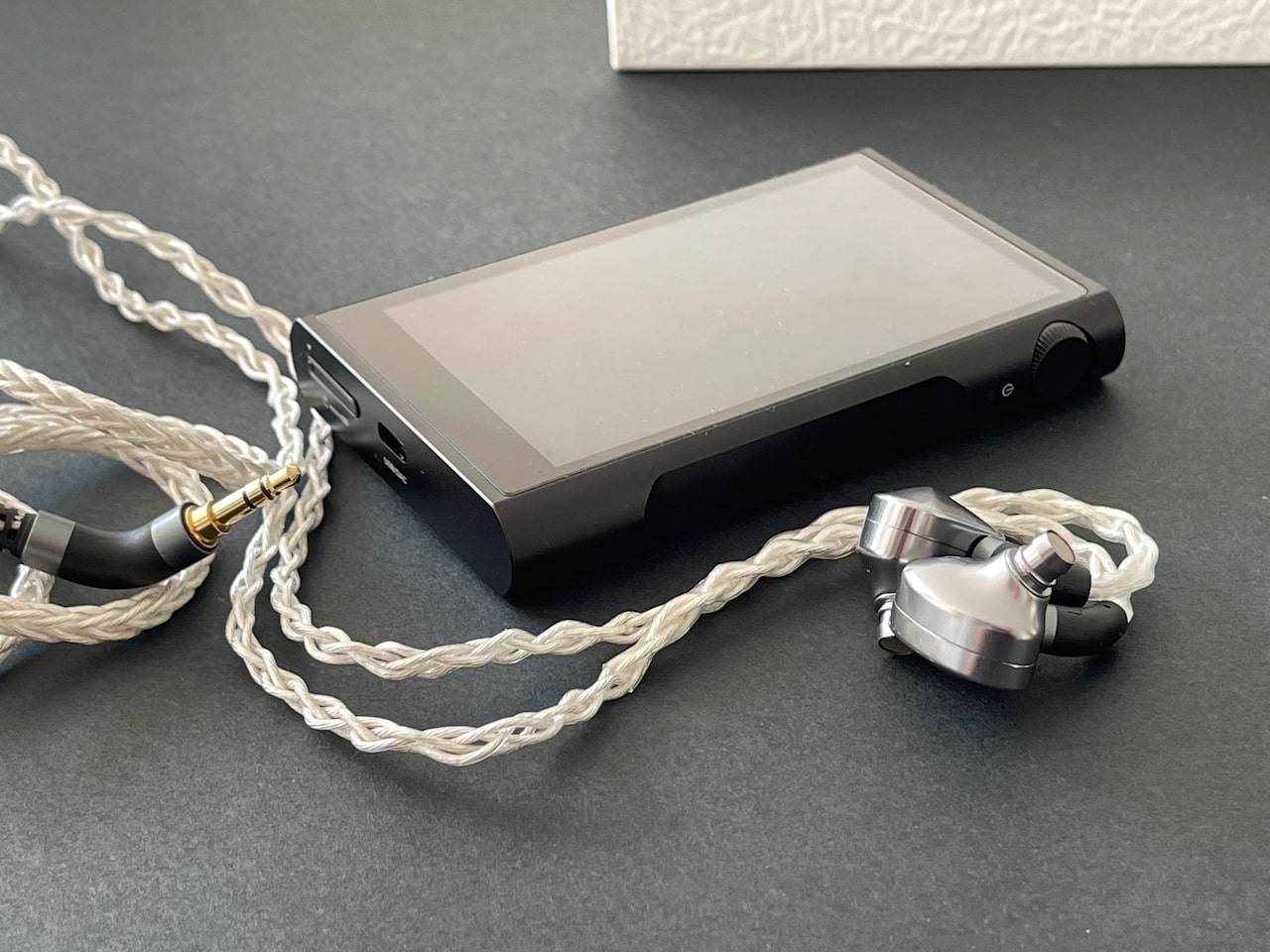
Effective digital music management starts with understanding how your hardware expects to receive audio files. For iPhone users, Apple provides a few clear paths. You can connect the device to a computer and transfer files using the Music app on a Mac running macOS 10.15 or later, or iTunes on a Windows PC. A wireless approach is also available. Turn on Sync Library at Settings > Apps > Music. This keeps your collection consistent across devices signed into the same Apple Account. When you are loading music onto MP3 players that are not made by Apple, the process is more direct. You simply drag files to the device’s folder when it is connected via USB, treating it as a standard external drive.
The source of your audio files matters just as much as the transfer method. The appeal of free MP3 song downloads is understandable. However, files from unverified websites often arrive with wildly inconsistent volume levels. They also lack embedded metadata like artist or album title. This is also the primary risk with YouTube to MP3 conversion through third-party tools. Beyond the legal gray area, the resulting tracks are frequently low-bitrate. They are stripped of the identifying information that makes a collection searchable. Searching for a specific track like kane brown what ifs MP3 free download or ain't no sunshine when she gone MP3 on the open web will almost certainly deliver a problematic file. That file will need to be properly tagged and normalized before it sits neatly alongside your other music.
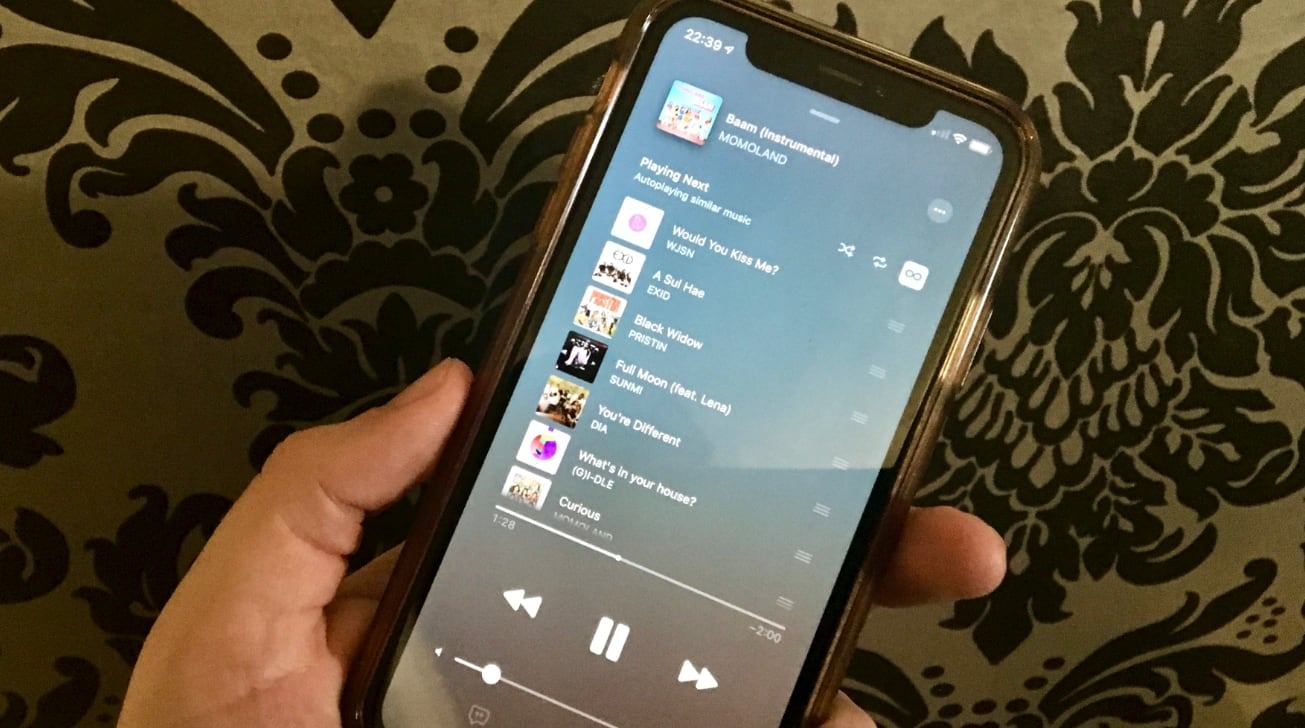
For those who prefer a legitimate streaming catalog, Apple offers a tool to consolidate your collection. On an iPhone, you can open the Music app, tap your profile icon, and choose Transfer Music from Other Services. This option only appears if you have an active Apple Music subscription. The same feature is available on an Android device. Use the latest version of the Apple Music app and go to More > Settings > Transfer Music from Other Music Services. After signing into a supported third-party platform, you can select all or specific playlists and albums to add to your music stash. Apple will match the songs to its catalog for a clean, properly labeled listening experience.
Creating, converting, and editing audio files
Making a new audio file often starts with MP3 creation and conversion inside a desktop audio editor rather than on a phone, since most mobile operating systems do not offer a built-in menu path for that task. On a Mac, you can drag a GarageBand song from the Finder to the GarageBand icon in the apps list while the iPhone is connected, but the documented steps cover sharing a project to iCloud Drive or transferring a song to the GarageBand app, not exporting a finished MP3 directly from the phone. When you are converting audio to MP3 from another format, a computer gives you control over the bitrate and tagging fields, which prevents your collection from turning into a mess of untitled tracks. The same principle applies when editing MP3 files, as trimming a long recording to just the section you want is straightforward in desktop software. For MP3 file tasks on iPhone, Apple documents a wired transfer from a Mac to the GarageBand app on the device, but it does not list a system-wide converter or a dedicated MP3 trimmer, and that limitation shapes how you approach mobile-only workflows. If your goal is to add your own MP3 to TikTok, the reliable route does not involve uploading an audio file directly through the app’s normal posting flow; instead, build your video in a separate editor with that MP3 as the soundtrack, export a complete video file, then upload it with the Add post button.
Managing your music library and storage
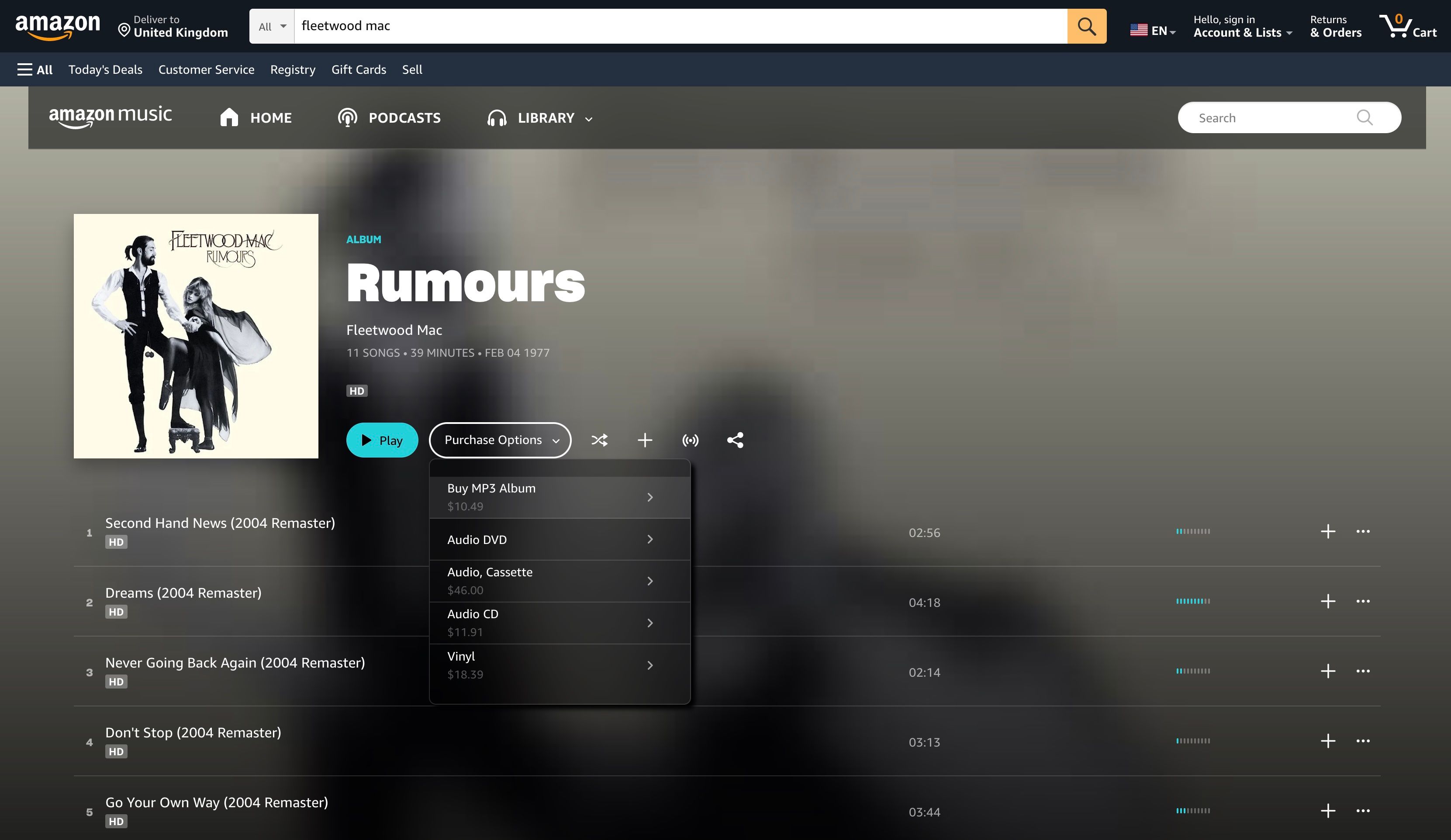
Once you have clean, properly tagged files, the way you handle digital music storage and access shapes how quickly you can find a specific track. A folder of loose MP3s on a desktop is searchable, while a streaming service keeps everything in one catalog. Amazon Music stores your collection in the cloud, but offline downloads live inside the app on that device and cannot be exported to external storage or burned to a CD. If you are trying to save phone space, open Amazon Music settings and turn off Auto-download All-Access Playlists, then enable Play downloads first so the app prefers local files and turn on Stream only on Wi-Fi to prevent cellular streaming.
Spoken-word content adds its own clutter, which is why audiobook and podcast management benefits from keeping the two formats separate in your routine. Podcasts require only an Amazon account to listen, and you can download an episode by tapping the icon on the show or episode detail page to find it later in the Download section of the podcast library. For audiobooks, an Amazon Music Unlimited subscription includes one Audible title a month, available through the Audible tab in the app’s top navigation. You can swap it by choosing a new book and confirming the replacement or keep listening to your current pick. When you want to retrace what played earlier, you can ask Alexa+ a voice query like “What did I listen to earlier this morning?” to check Amazon echo music history for the last 30 days, though this feature may not be available on every Echo device.
Setting up playback and custom sounds
Getting your audio to land in the right place starts with thorough playback device setup, which means telling your phone or computer exactly where to send sound. When you choose an item to play on an iPhone, you can tap the playback destination control and select a speaker or headphone from the list that appears, routing the audio away from the built-in earpiece. That same principle of directing output matters just as much when you create MP3 ringtones and alarms, because a file that sounds full on your stereo can become a thin, tinny alert if you do not test it on the phone’s speaker first. Before assigning a custom clip, listen to it at the volume and distance you will actually hear it from, testing it on a nightstand or inside a pocket to ensure the melody cuts through clearly. For households with a DVR, playback recording on Spectrum may follow its own rules.
Controlling playback and fixing glitches
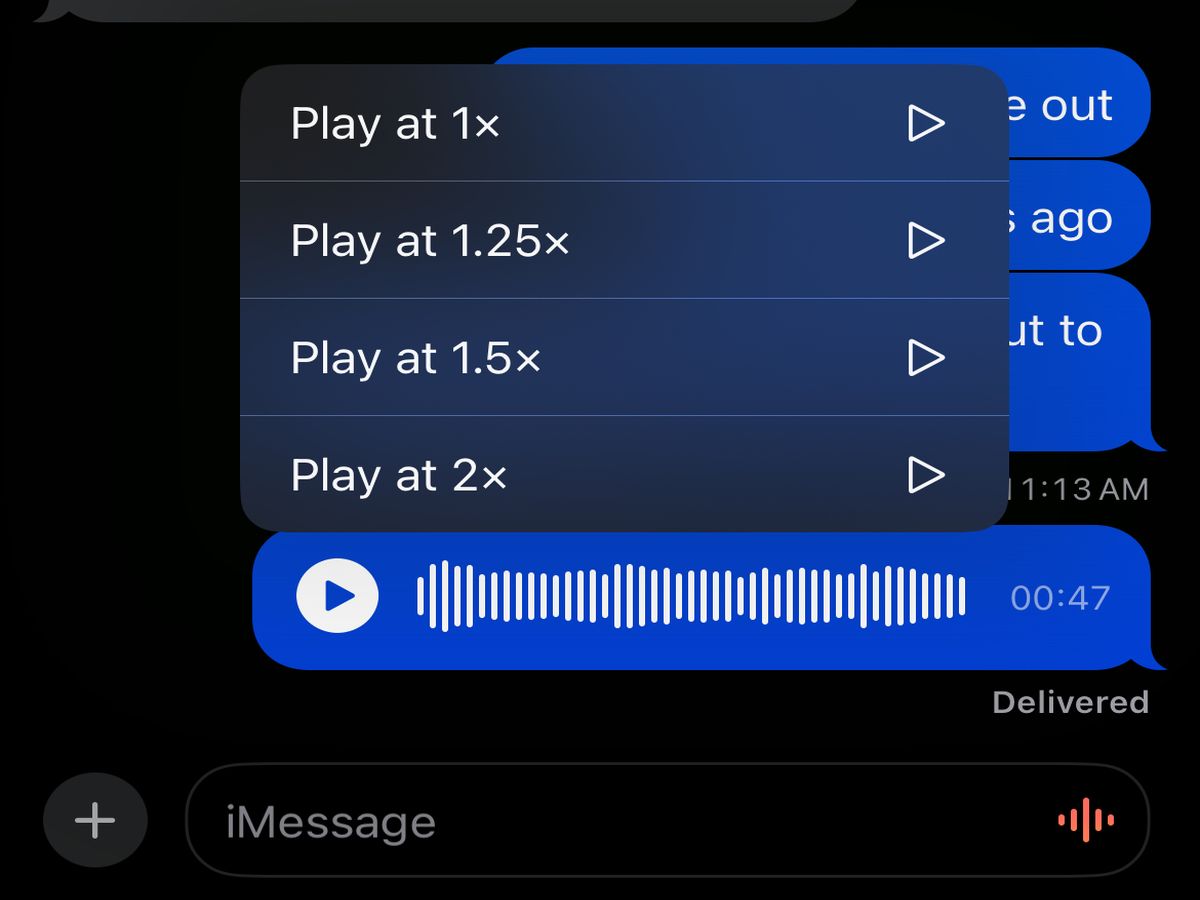
When a podcast guest talks too slowly or you need to power through a long lecture, you might look for a playback speed control in your app’s audio player, though the exact location varies by developer. Using this feature lets you skim through content at your own pace, avoiding the frustration of wasted time, and you can read more about it in the article on controlling playback speed in music apps.
If your audio or video stutters instead, streaming playback problems often trace back to a weak Wi‑Fi signal rather than the file itself. Start by testing your internet speed, then move closer to the router and disconnect other devices from the network. You can also forget and rejoin the Wi‑Fi network and restart the router for at least 30 seconds. Resolving these interruptions, as detailed in the article on troubleshooting music streaming interruptions, ensures you enjoy uninterrupted music without constant buffering.
When video playback problems persist, try switching to a different network or testing the same clip on another device on your current network to isolate the issue. On PBS web video, you can tap the gear icon in the lower corner of the player and choose a lower streaming rate. Keep in mind that the PBS livestream and PBS App auto-adjust to whatever speed your connection can sustain and do not offer that manual control. Addressing these choppy visuals, as explained in the article on fixing choppy video playback issues, helps you watch your favorite performances without distraction.
- streaming playback problems — Troubleshooting Music Streaming Interruptions
- video playback problems — Fixing Choppy Video Playback Issues
- playback speed control — Controlling Playback Speed in Music Apps
Understanding quality, formats, and the industry
When you rip a track from a random website and it sounds quieter than the rest of your collection, you are running into the practical reality of audio bitrate and quality. A lower bitrate strips away detail to save space, while a higher one preserves more of the original recording. The uneven results from unregulated sources are why dedicated apps now handle this behind the scenes instead of asking you to guess a number. The dominance of music streaming services means these quality tiers are built into the platforms you already use rather than being a separate conversion step. On an iPhone, you can head to Settings > Apps > Music > Audio Quality > Lossless Audio to choose up to 24-bit/48 kHz for standard Lossless or 24-bit/192 kHz for Hi-Res Lossless, though the option only works for Apple Music subscribers. Spotify puts the controls under Settings and privacy > Media quality, where you can pick a Lossless option for Wi‑Fi, cellular, or downloads. YouTube Music splits its audio-quality settings between Settings > Data saving > Audio quality on Wi‑Fi on Android and Settings > Playback & restrictions > Audio quality on Wi‑Fi on iPhone or iPad. If you have ever wondered why a professionally released song sounds cleaner than something you exported yourself, it helps to grasp some digital music production basics. The mastering engineer’s final polish is what a streaming service’s normalization feature is trying to match, pointing to a larger digital music industry impact where consistent listening is now a subscription feature.