Home>Production & Technology>Creating and Converting MP3 Audio Files
Production & Technology
Creating and Converting MP3 Audio Files
Modified: 3 October 2026
Table of Contents
Understanding the MP3 audio files format
Before you create or convert any MP3 audio files, you need to understand the MP3 file format as a practical tool rather than a perfect container, using MPEG-1 Layer 3 encoding to shrink file size by permanently discarding sound data your ear is less likely to miss. Understanding an MP3 file's nature means accepting that when you see how MP3 player work happens in practice, the supported bitrate range from 32 to 320 kbps and sampling frequencies of 32, 44.1, and 48 kHz define what the device can actually decode and play back. The total tracks you can fit depends entirely on the bitrate you chose during encoding, and knowing the 700MB CD MP3 capacity helps you plan how many songs you can burn onto a single disc for long car trips or backup archives. For portable listening, checking Sony Walkman supported music files confirms that MP3 files with the .mp3 extension are consistently listed across models, though transfer software sometimes re-encodes other formats into MP3 or AAC before sending them to the device.
- Sony Walkman supported music files — What Music Files Will A Digital Sony Walkman Play?
- 700MB CD MP3 capacity — How Many Songs Can A 700MB CD Hold In MP3 Format
- MP3 file format — What Is An MP3?
- MP3 player work — How Does MP3 Player Work
Creating mp3s from physical media
Transferring music from physical formats into MP3 files begins with the hardware you already own. To rip CDs to MP3, insert the disc into any USB optical drive connected to your computer and use audio extraction software that supports MP3 encoding, which is exactly what you need when you want to make music on CD into digital file collections that play on modern devices. The quality ceiling is set by the 44.1 kHz, 16-bit PCM audio stored on the disc itself, which is why you might also want to convert CD music to MP3 for portable listening or convert a CDA file to MP3 when dealing with the raw audio tracks on a disc.
To convert cassette tape to MP3, you can capture the playback using recording software and encode the resulting file to MP3, a process that helps you preserve old recordings that might otherwise be lost. Every conversion from one lossy format to another strips away more audio data. Capturing these physical sources directly as uncompressed WAV or AIFF files before creating your final MP3 preserves the most detail. The same principle applies to extracting audio from digital video files or older proprietary formats, such as when you need to convert MOV to MP3 to isolate a soundtrack or convert Windows movie maker to MP3 to salvage narration or music from an old project. The available paths differ widely depending on the source material, and you might also need to convert TikTok sound to MP3 to save a trending audio clip offline. The steps for each are distinct enough that the specific workflow you need depends on your starting point, whether that is a disc, a tape, or a legacy project file.
- convert CD music to MP3 — How To Convert CD Music To MP3
- convert a CDA file to MP3 — How To Convert A CDA File To MP3
- convert cassette tape to MP3 — How To Convert Cassette Tape To MP3
- convert Windows movie maker to MP3 — How To Convert Windows Movie Maker To MP3
- convert TikTok sound to MP3 — How To Convert TikTok Sound To MP3
- convert MOV to MP3 — How To Convert MOV To MP3
- make music on CD into digital file — How To Make Music On CD Into Digital File
- rip CDs to MP3 — How To Rip CDs To MP3
Recording and saving new MP3 files
When you need to capture live sound and save an MP3 file directly, your starting point depends on which device you have in hand. It also depends on what level of quality you are willing to lock in. The MP3 encoder discards audio data during compression. It is worth checking your software’s settings to select the highest practical bitrate before you begin recording. You should not accept a low-quality default that cannot be restored later.
If you want to record MP3 on Windows, the built-in Sound Recorder app offers a simple workflow. You can stop and save a recording by tapping Stop recording or pressing the Esc key. The format it actually writes is not user-configurable during that simple workflow. On an iPhone, the path to make voice memo into MP3 begins with opening the recording in the Voice Memos app. You must then choose whether layers are merged or separated. Next, tap the Share button, scroll down to Save to Files, and pick a location. From there, you still need a separate converter to produce the final MP3. To make MP3 file output a reality across these platforms, the most reliable approach is to capture your audio in an uncompressed format first. You should then encode to MP3 as a deliberate final step. This preserves the highest quality source for any future needs.
Converting video and other audio formats to MP3
When your starting point is a video file, a digital movie, or another audio format, the same lossy-compression rule applies. Converting directly between compressed formats multiplies the damage. The cleanest path is to extract the audio track in an uncompressed state before encoding your final MP3. Many people want to rip music from digital movie on Windows 10, but the built-in tools do not offer a direct export path for this task. This means you will need third-party extraction software that can open the video container and save the audio stream as a WAV or AIFF file first. Similarly, Windows Media Player does not include a documented standalone file converter that turns MP4, WMA, or CDA tracks into MP3 outside of one specific scenario. The one documented workflow that actually produces an MP3 inside the player is CD ripping. Open the application, go to Tools > Options > Rip Music, set the Format dropdown to MP3, and let the software pull the audio from a physical disc. For other conversions, including MP4, WMA, general music files, and CDA sources, the documented process depends on whether you are starting from a disc or a standalone media file. If you need to convert music files to MP3 using Windows Media Player. Likewise, to convert a CDA file to MP3 using Windows Media Player. Should you need to convert MP4 into MP3 using Windows Media Player, the article clarifies why the player cannot handle that directly and what to do instead. And if you want to convert WMA to MP3 with Windows Media Player, the article details which WMA files are eligible for conversion and which are not. Matching the right tool to that distinction is what determines whether you end up with a clean encode or a generational quality loss.
Converting from online sources and apps
When your audio lives in cloud storage, social media, or a messaging app, the path to a downloadable MP3 often starts with getting the original file onto your device in its current format. If you need to convert audio to MP3 on Google Drive, the apps do not include a documented built-in conversion feature. On iPhone you tap More next to the file and choose Download. On Android the same More > Download path saves the file as-is to your phone. From there, you still need a separate converter app or desktop tool to encode the downloaded file into MP3. The same principle holds for audio saved inside other platforms. Download the highest-quality source file available before you run any conversion. Transcoding an already-compressed stream directly into MP3 compounds the lossiness and leaves you with noticeably thinner sound. Once the file is stored locally, you can open it in the converter you trust and choose your MP3 settings knowing you started from the cleanest copy the platform could give you.
Exporting mp3s from audio workstations
When your project is finished in Audacity, you can export audacity as MP3 by going to File → Export audio. Choose MP3 from the Format dropdown. The default setting is a variable bitrate between 170 and 210 kbps in joint stereo. If you run into encoding problems, setting the project rate to 44100 Hz before export usually clears them up.
In Adobe Audition, the path to export audition to MP3 starts at File > Export > File. Adobe recommends reserving the compressed MP3 option for files destined for the web or a portable media player. This is where smaller size matters more than full fidelity. On a Mac, you can save logic pro as MP3 only indirectly. The File > Export > Track as Audio File dialog offers AIFF, WAVE, and M4A rather than MP3 as a direct output format. The same limitation applies to Logic Pro for iPad. The export panel in the Mixer gives you the same three choices. You must first route everything to the main stereo output and confirm no tracks are muted.
Importing existing material into a project has its own constraints. If you need to add MP3 to Garageband. Similarly, when you want to add MP3 to LMMS, that guide shows you the steps to load compressed audio into your beat or composition workflow.
Editing and managing MP3 files
Once you have your audio file, you can refine what you actually hear and see in your library when you change MP3 metadata. Using a web-based ID3 tag editor, you can upload your track and rewrite the title, artist, album, year, genre, and BPM, or even swap out the cover art directly in a browser like Safari on an iPhone or Chrome on an Android device. When you save, the updated file typically lands in the Files app or iCloud Drive on iOS, or the Downloads folder on Android, ready to replace the old copy.
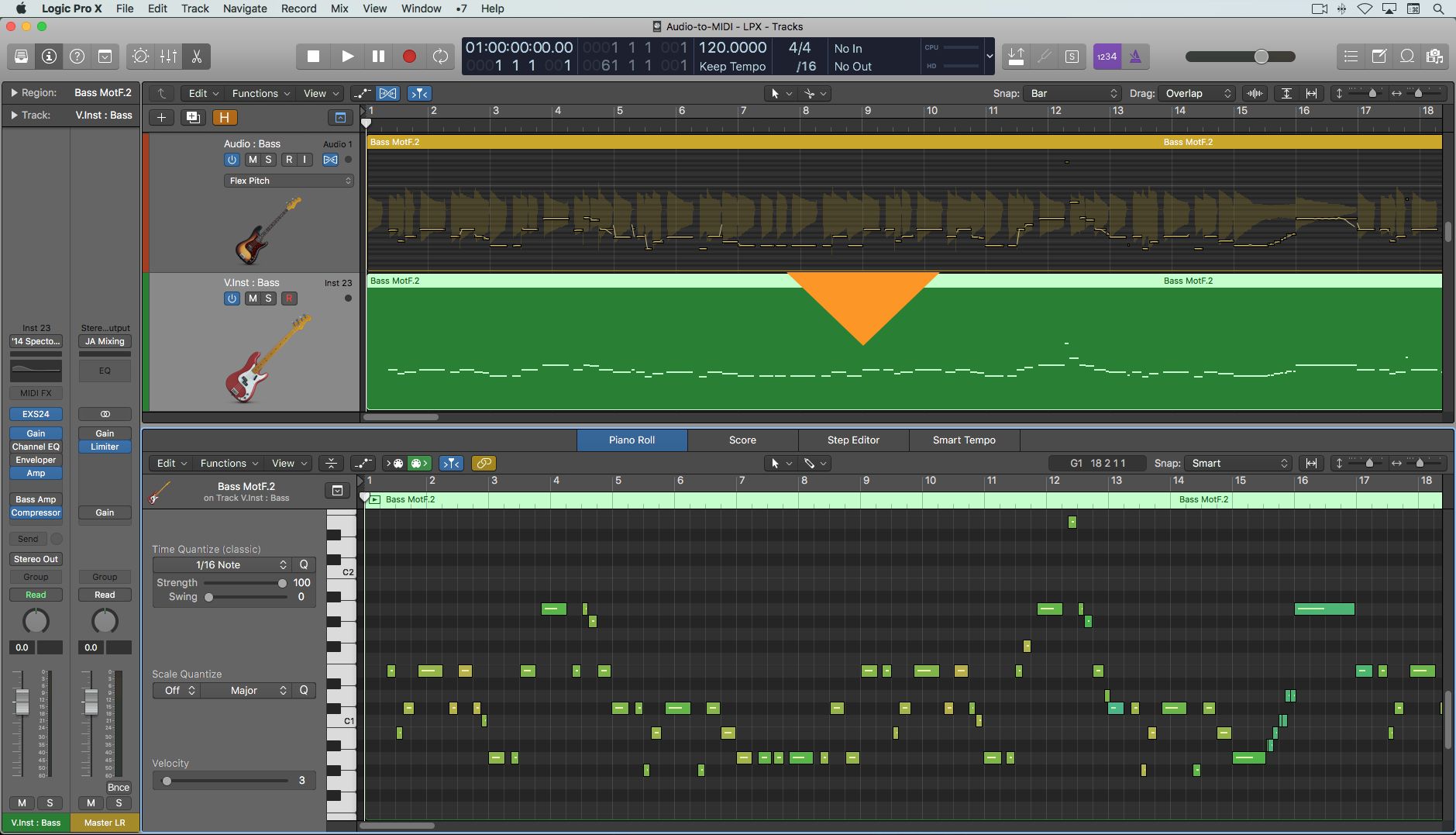
If storage space is tight, you may need to compress MP3 file size before transferring it. A completely different creative route opens up when you want to make an MP3 to MIDI file, and for a clear vocal line like the MP3 of 'What a Wonderful Word', the melody often translates well.
Burning mp3s to cds and devices
When you want physical copies that play in a car stereo or home deck, one method you can use to burn MP3 to CD Windows 10 runs through iTunes on PC. If you specifically need a disc for older hardware, you should burn MP3 CD on iTunes to ensure compatibility with standard CD players. After inserting a blank CD-R, open the app and choose Music from the pop-up menu at the top left. Then select the playlist you want and go to File > Burn Playlist to Disc. In the Burn Settings dialog, pick MP3 CD as the disc format. This option only works if every track in the playlist is already an MP3 file. If the playlist contains AAC files or other formats, that option will not work. You should choose Data CD or DVD instead to create a disc that holds any audio format iTunes supports. The resulting MP3 CD plays on MP3-capable CD players and computers. Some devices can also read CD-RW discs. Apple confirms that songs purchased from the iTunes Store must be converted to MP3 before they can be included on an MP3-formatted disc. A data disc sidesteps that restriction entirely and remains the practical fallback for mixed-format playlists.