Home>Production & Technology>Working with MP3 Files on iPhone
Production & Technology
Working with MP3 Files on iPhone
Modified: 3 October 2026
Table of Contents
Getting MP3 on iPhone and audio files onto your device
If your goal is to load MP3 onto iPhone and keep it inside the Music app library for offline listening, the simplest route is to open the Music app. Touch and hold a song, album, or playlist, then tap Add. This works for music already synced via your Apple account. It does not pull in standalone audio files from outside the ecosystem. For many people, the real hurdle is figuring out how to put MP3 on iPhone without iTunes. Apple no longer offers a system-wide file transfer window for dragging tracks onto the device. A practical workaround is to stage the file in the Files app first. Tap Browse, then tap Downloads in the sidebar to locate items saved from email or the web. From there, GarageBand for iPhone can import AIFF, WAV, AAC, and MP3 audio files directly. Open the Loop Browser, tap Files, and browse to the track.
When you need to get my digital music to my iPhone from a cloud service, Google Drive for iPhone and iPad lets you tap More next to a file. Choose Open in, then Save to Files to place it locally. This same pattern applies when you want to download MP3 to iPad as well. The Files app and GarageBand import flow are available on both devices. Once the file sits in a folder, you can listen to it using the Files app. You can also pull it into a GarageBand project. Just set the song section length to Automatic if you want the entire file imported instead of a clipped segment. When you download an MP3 on iPhone by way of a third-party app, the destination often lands in that Downloads folder. The file is then ready for you to move or play back manually.
Saving and managing files on the device
Once you have an audio file in hand, the next step is to decide where it will live. iOS lacks a universal encoder. You cannot simply tap a recording and export it as an MP3. You must intentionally place the file yourself. Many people start by learning how to save an MP3 file on an iPhone using the Files app. This app lets you create custom folders inside On My iPhone or iCloud Drive for manual playback.
There is no direct menu option to add MP3 to Apple Music on iPhone from Files. You can open the Music app, find an item, then tap Add to bring it into your collection. Then tap Add to bring it into your collection. Sync Library can be enabled under Settings > Apps > Music. There is no method to add MP3 to iPod without iTunes. In every case, the Files app remains your central hub for browsing, renaming, and organizing tracks before they move into a dedicated player.
Creating and converting MP3s
Any app that lets you record MP3 audio on iPhone relies on its own built-in conversion engine. The built-in Voice Memos app records in Mono, Stereo, or Spatial Audio. Supported iPhones can record with the built-in microphone in Spatial Audio, while earlier iPhone models record in Mono unless Stereo Recording is turned on in Settings. The recording mode is set under Settings > Apps > Voice Memos > Recording Mode. But it never saves directly as an MP3. To make an MP3 file on iPhone from scratch, you record in a third-party app that encodes to MP3. Then you save the result into the Files app for manual organization. When you already have a video clip and need to convert a video to MP3 on iPhone, a third-party audio extractor app may separate the audio track and let you pick MP3 as the output format before exporting to a folder. If you want to convert YouTube video to MP3 on iPhone, no official YouTube tool performs this conversion on the device. Since no official YouTube tool performs this conversion on the device, you would need to use a third-party service and then stage the resulting file locally. Once a track lands on your device, you can download YouTube MP3 on iPhone files into the Files app. There you decide whether to keep them for manual playback or move them into a compatible music app.
Working with Apple Music and podcasts
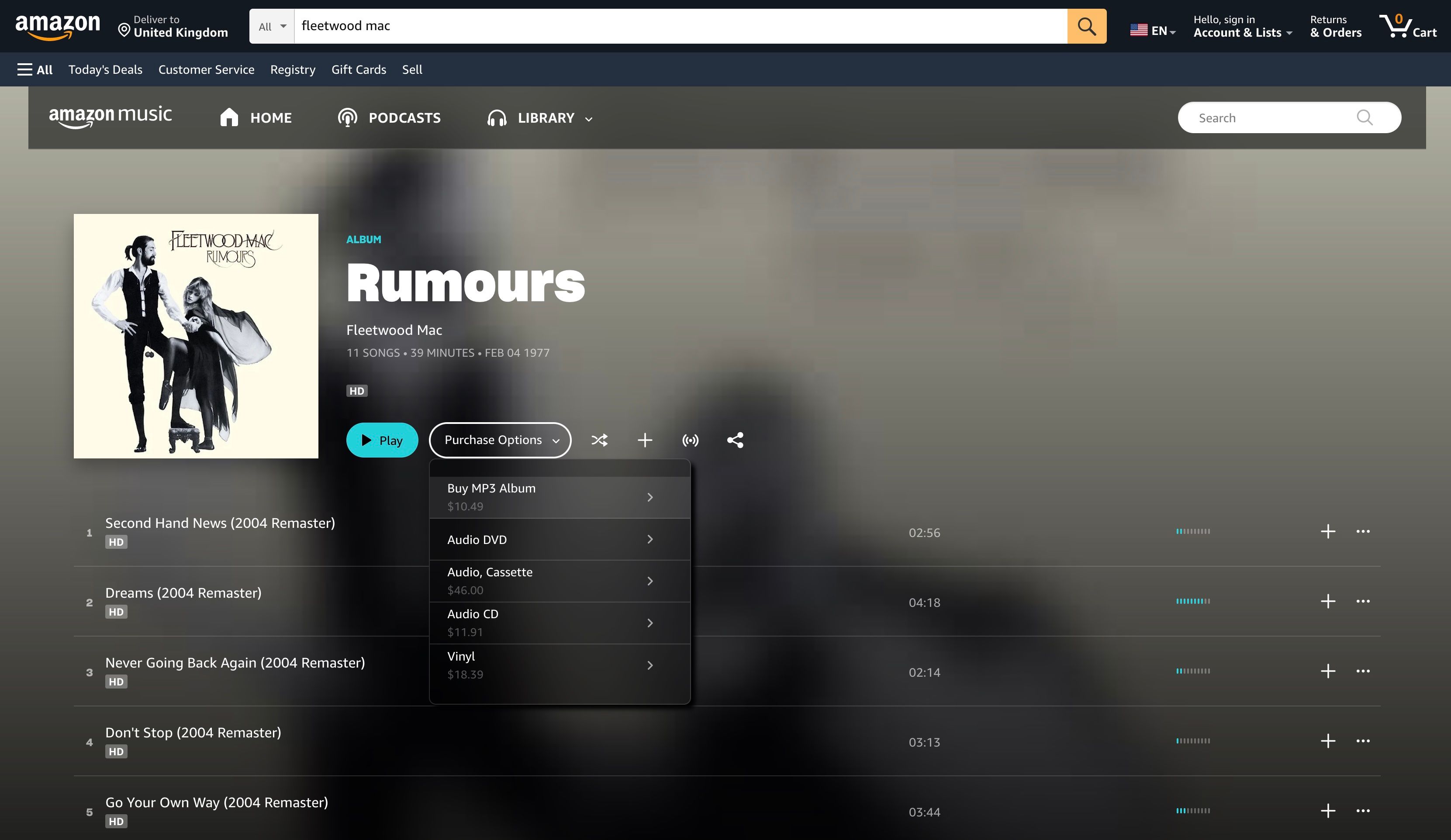
Much of the confusion around Apple Music and MP3s comes from a single limitation. The iPhone cannot strip the copy protection from streaming tracks. You can convert Apple Music to MP3 on a Mac or Windows computer. You must use the desktop app’s File > Convert menu after changing the import format in settings. That same restriction applies when you want to download music from Apple Music to MP3. The phone can cache songs for offline listening inside the app. It never saves them as standalone MP3 files you can move or share. If you already own unprotected tracks on a computer, you can put MP3 on Apple Music by adding them to your library. They then appear in your iPhone library. For spoken-word content, the workflow shifts away from the Music app entirely. To find podcast on Apple Music, open the Podcasts app, tap Search and type a category, title, person, or topic. Top hits populate as you type. The All Podcasts scope searches every channel, show, and episode available on the platform.
Playing audio back
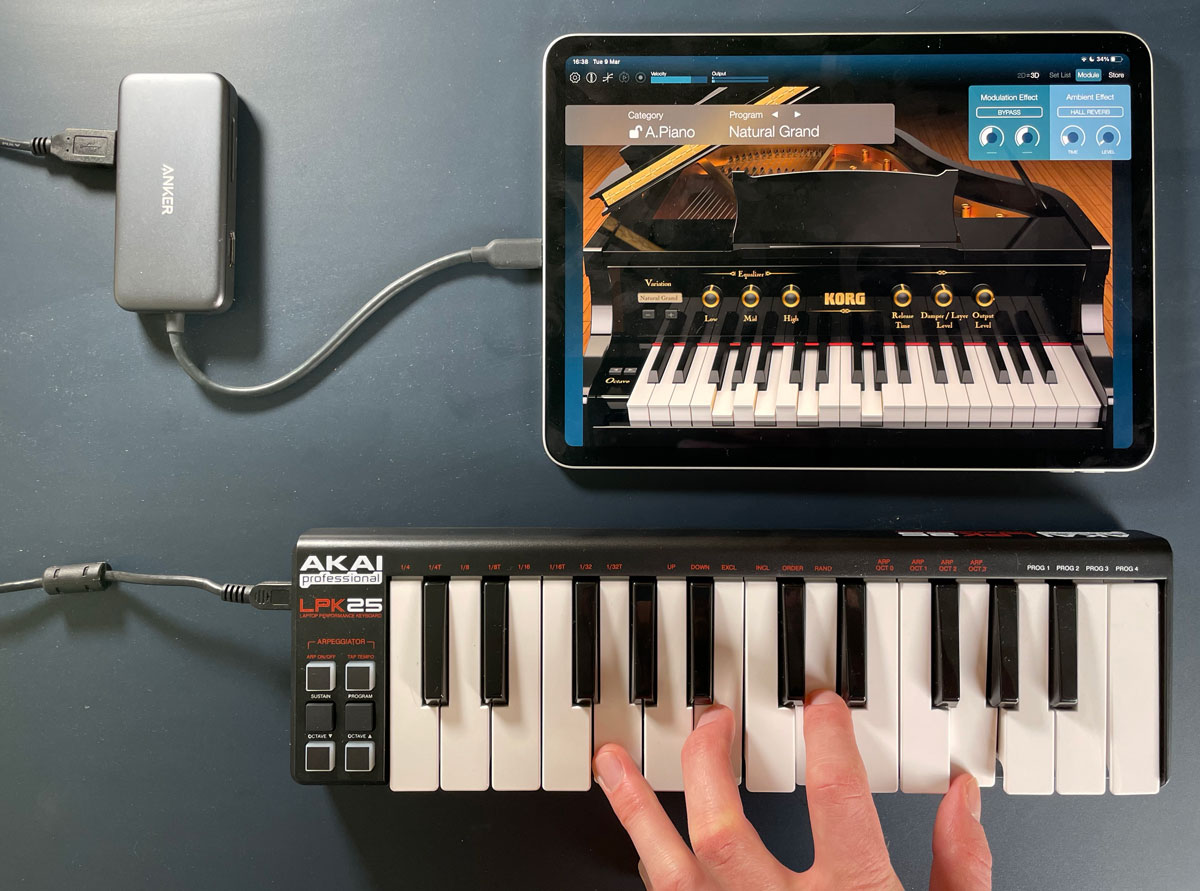
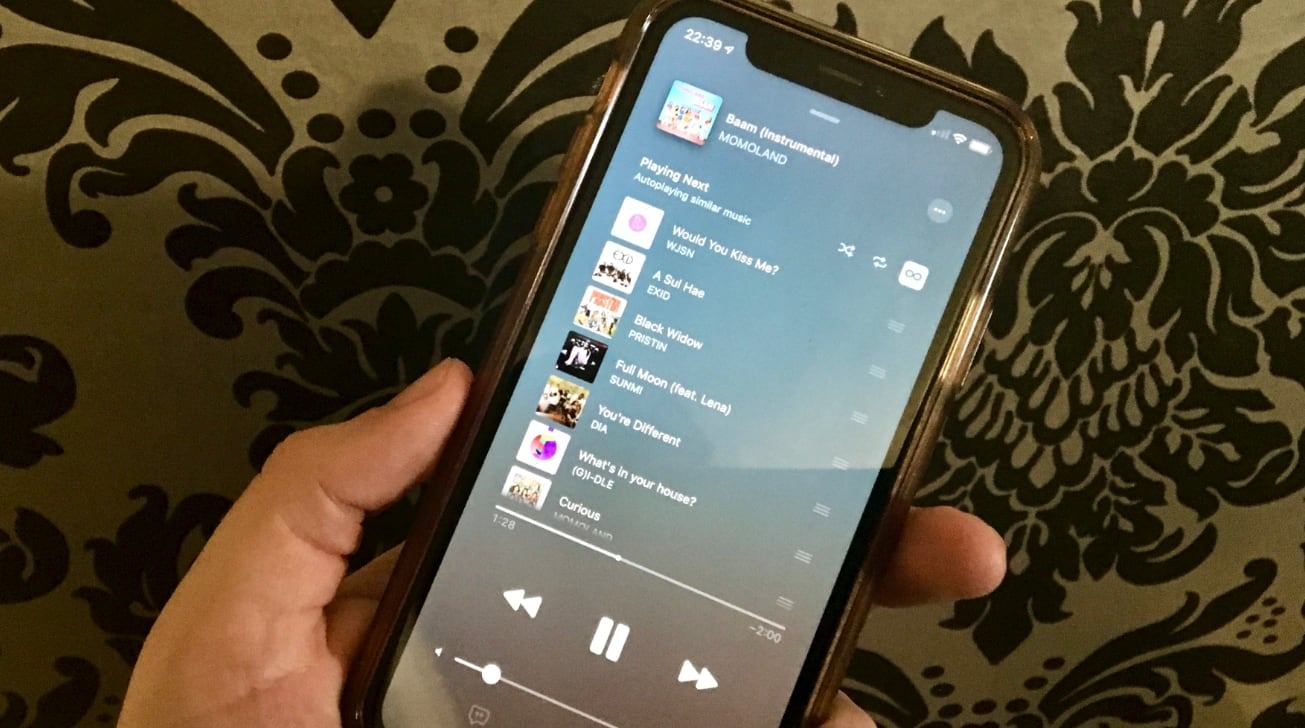
Once your files are organized, the listening experience depends on what you have and where you want to hear it. For standard audio, you can play MP3 file on iPhone with the Music app by opening it, tapping Library, and selecting Downloaded to see only the tracks stored locally on the device, which is the most straightforward way to enjoy your music collection. Sound can come from the built-in speakers, AirPods and other Bluetooth devices, or via AirPlay. The situation changes with different formats. If you need to play MIDI files on iPhone, the built-in apps do not offer a direct playback path, so you will need a third-party synthesizer app from the App Store that can load and render those instrument instructions, which is essential for musicians and hobbyists working with digital instrument data. For a completely different setup, you might want to play music for iPhone on computer using audio cable by connecting your iPhone to the computer's USB port with the standard charging cable, allowing you to route audio through your computer's sound system for a more powerful listening experience. Once plugged into a Mac running OS X 10.9 or later or a Windows machine with Windows 7 or later, the connection allows file transfers and syncing between the devices.
- play music for iPhone on computer using audio cable — How To Play Music For iPhone On Computer Using Audio Cable
- play MIDI files on iPhone — How To Play MIDI Files On iPhone
- play MP3 file on iPhone — How To Play MP3 File On iPhone
Sharing MP3s with apps and people
When you want to send MP3 files on Instagram, the direct approach hits a wall because the platform's sharing tools are built around photos and videos, not raw audio tracks. A practical workaround is to pair the audio with a still image in a video editing app first, then export a clip that carries your sound into a format Instagram can read. The same limitation applies if you try to post MP3 on Facebook from your iPhone, as the composer offers a Photo/Video option. Since neither platform accepts a bare MP3 via its official mobile interface, the more reliable path for sharing with a specific person is to skip the social feed entirely and use Messages, Mail, or AirDrop, all of which handle the file type natively from the share sheet in Files.