Home>Surround Sound>How To Connect A TV To A Surround Sound Receiver
Surround Sound
How To Connect A TV To A Surround Sound Receiver
Modified: 24 December 2023
Table of Contents
Identify your TV and connect surround sound ports
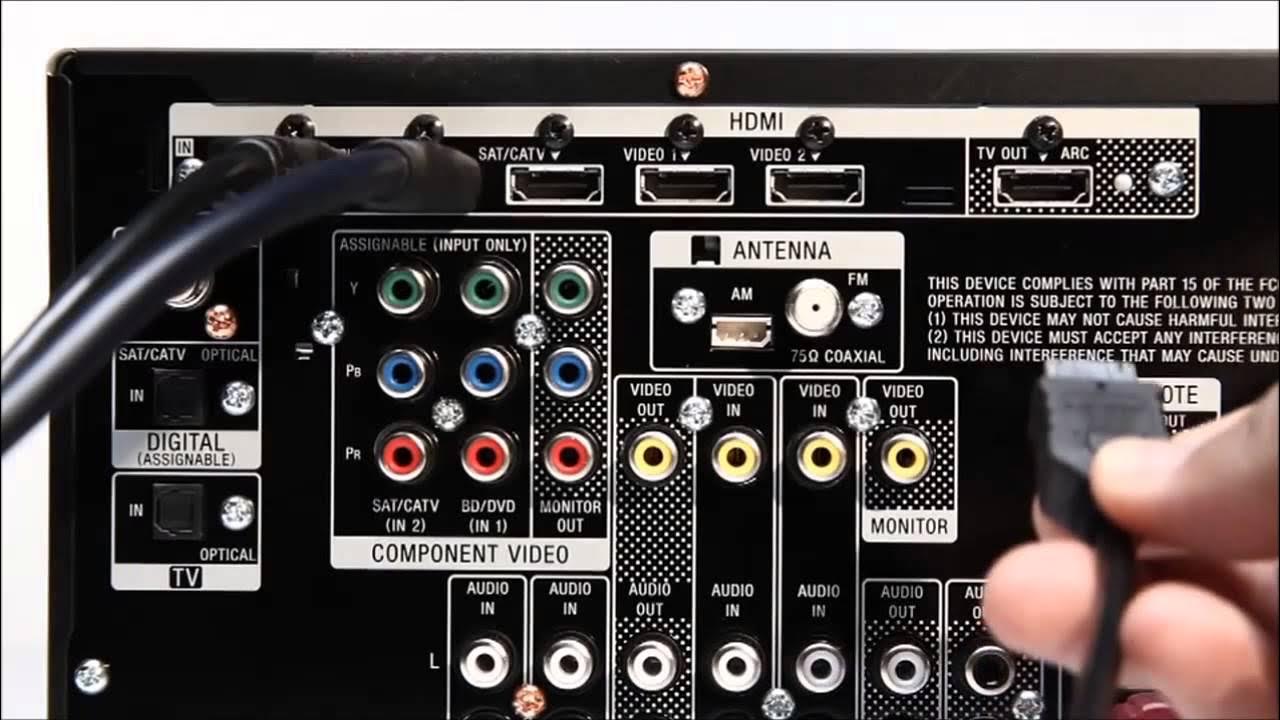
To connect surround sound to TV, start by looking at the back or side panel of your television to spot its audio output options. A modern set may have a port labeled HDMI ARC or eARC. This single connection carries both sound and picture. The audio cable needed for a Samsung Series 520D can be a standard HDMI cord plugged into its ARC-compatible port, or a digital audio cable connected to its digital audio output port. That setup supports up to 5.1 channel audio. If your TV and receiver both offer this, you can hook up surround sound to TV with HDMI by running one cable from the TV's ARC output directly to the matching input on your soundbar or AVR.
Older or simpler surround systems often lack HDMI. This means you need to hook up surround sound to TV without HDMI using a different digital pathway. Check both devices for a square-shaped TOSLINK port or a round coaxial jack. If the television has a digital audio out and the audio unit has a matching input, an optical or coaxial cable will carry standard 5.1 surround. When you connect audio cable to TV without yellow, you are ignoring the old composite video plug entirely. You are focusing purely on digital audio or stereo analog outputs like RCA or a headphone jack. That yellow connector was never part of the surround sound signal chain.
Connect a modern smart TV to any surround system
When you set out to connect Samsung smart TV to stereo receiver, the most reliable path is through the HDMI ARC port. Plug a single HDMI cable from the TV's ARC-labeled output to the receiver's matching input, then go to Settings > Sound > Sound Output on your Samsung remote and select HDMI Receiver as the output. Owners of older sets should know that the exact menu structure varies by model year: on 2017 and later screens the path is Settings > Sound > Sound Output > Receiver (HDMI), while 2016 K-series models hide it under Speaker Settings, and 2011-2012 D/E series require you to enable the receiver function inside the Anynet+ (HDMI-CEC) system menu. If your audio hub lacks HDMI, a digital audio cable connected to the TV's output delivers Dolby Digital up to 5.1-channel; select Optical in the same Sound Output list.
For anyone asking how to connect my Samsung 4K smart TV to my surround sound system, eARC is an option that requires both the television and the audio device to support it. The brand's eARC-compatible lineup includes UHD TU7000 models and later, along with QLED and Neo QLED series, which pair with soundbars like the HW-Q800T and HW-Q950T or an HDMI 2.1-compliant AV unit from a major brand. For a wireless setup, put your soundbar or amplifier into pairing mode, then look for Bluetooth Speaker List or Bluetooth Audio Device under the TV's Sound Output menu.
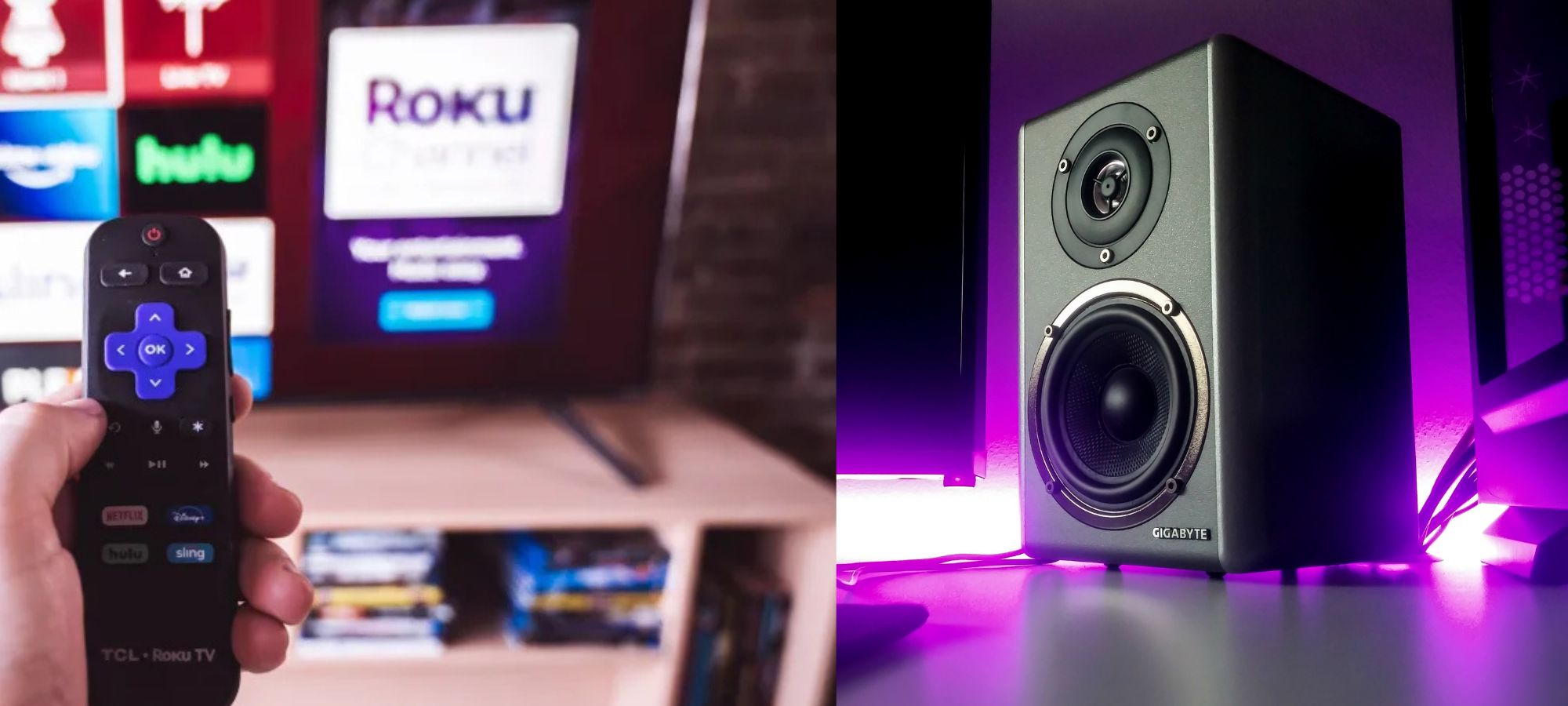
If you are researching the best way to connect TCL Roku TV to surround sound, start with the HDMI ARC port that every Roku TV model includes, which Roku recommends as the primary connection for an AVR or soundbar. A digital audio link serves as a reliable fallback through the set's output.
Hook up older or non-HDMI surround sound gear
When your surround sound system predates HDMI, the most reliable path to modern TVs is the digital optical connection. Plug a TOSLINK cable from the television’s DIGITAL AUDIO OUT port into the receiver or speaker system’s DIGITAL AUDIO IN jack. Then navigate to Home > Settings > Sound > Sound Output and select Audio Out/Optical; on some Samsung sets, you may need to choose Receiver (Optical) instead. Samsung notes that HDCP copy protection may block 5.1 passthrough from certain HDMI sources, limiting you to stereo in those cases.
If your gear is even older and only offers red and white RCA inputs, a standard stereo cable between the TV’s analog output and the system’s analog input will work, though you will only get two-channel sound. For a Samsung soundbar connected via optical, press Source on the bar and set it to D.IN, then choose Receiver (Optical) in the TV’s Sound Output menu. The core principle is to match whatever audio output your television provides to an input the legacy system can accept.
You can hook up old surround sound to smart TV using the digital audio output. Start by identifying the port labeled Optical or SPDIF on both devices and run a single fiber-optic cable from the panel to the audio unit. Once the physical link is secure, open the TV’s audio configuration panel and switch the output to the external speaker option to preserve digital signal quality.
To connect RCA surround sound to TV, you will need a television with dedicated red and white RCA audio outputs, or use a 3.5mm-to-RCA adapter cable if only a headphone port is available. Plug the RCA ends into the corresponding AUX or TV input on your audio system, then access the television’s sound menu and ensure the speakers are set to external, remembering that this analog signal is limited to stereo.
You can connect pioneer surround sound to a TV by using an optical cable for the cleanest signal. Many Pioneer units feature a dedicated TV input on the back panel, so after running the cable, press the input selector on the front of the unit until you see the correct digital input displayed, then go into the television’s audio configuration and disable the internal speakers.
To connect bose surround sound to TV, locate the audio input on your Bose console. Different Lifestyle and Acoustimass systems use different connection types, as some require a proprietary cable while others accept a standard digital optical or analog connection. After linking the two devices, use the Bose remote to select the correct source and adjust the television’s audio output to match the physical connection you used.
You can hook up Panasonic surround sound to TV by using an optical digital cable. Connect the cable to the optical output on the television and the matching input on the Panasonic unit, then select the D-IN or OPTICAL function on the Panasonic system using its remote. Finally, navigate to the television’s sound output settings and choose the optical or external speaker option to complete the setup.
To hook up my onn surround sound to my smart TV, check the input options on the Onn speaker bar or receiver, as most Onn systems feature an optical port, an AUX jack, or Bluetooth. For a wired digital link, use an optical cable between the two devices and set the Onn system to the correct input mode to get your smart TV audio playing through the Onn speakers quickly.
You can hook up surround sound to sharp TV by using the digital audio output port on the back of the Sharp panel. Run a fiber-optic cable from this port to the corresponding input on your audio receiver or soundbar, press the input button on your audio device until the optical source is active, then press the Menu button on the Sharp remote and navigate to the Audio section to change the speaker output from the internal TV speakers to the external audio system option.
To hook up stereo to TV, a simple analog connection using RCA cables will work, but this will only provide two-channel sound. Use a cable with red and white RCA plugs on both ends from the TV’s audio output jacks to an available input on your stereo receiver, such as AUX or CD, or use a 3.5mm-to-RCA adapter cable if your television only has a headphone output. After the physical connection is made, select the correct input on your stereo and control the volume using the stereo’s remote, not the television’s.
You can hook stereo speakers to TV by using a small amplifier or a powered speaker set, as passive speakers require an amplifier or receiver between them and the television. Connect the TV’s audio output to the amplifier’s input using RCA cables or a digital optical cable, then run standard speaker wire from the amplifier’s terminals to the speakers, bypassing the need for a bulky receiver entirely.
To connect Sony surround sound to Samsung smart TV, use an optical cable from the Samsung TV’s digital audio output to the Sony system’s optical input. On the Samsung TV, go to Home > Settings > Sound > Sound Output and select Receiver (Optical). Then, press the input button on the Sony system to select the optical source. This same optical method lets you connect surround sound to Samsung TV regardless of the audio brand. To connect audio interface to TV, use the interface’s monitor or line outputs with the appropriate cable to the television’s available audio input.
Pair specific brand combinations
When you want to set up Panasonic surround sound on Samsung smart TV, the connection can start with Bluetooth. Put the Panasonic system into pairing mode so its display reads BT PAIRING, then on your Samsung remote go to Home > Settings > All Settings > Sound > Sound Output and choose either Bluetooth Speaker List or Bluetooth Audio Device, depending on what your model shows. Select the Panasonic from the list and confirm with Pair and Connect. Samsung blocks using Bluetooth devices at the same time as its Wi‑Fi Speaker Surround Setup or TV SoundConnect features, so you will need to disable those first. If you are trying to pair Samsung surround sound with a television from the same brand, a similar menu path applies, though the exact output menu can vary by TV model and you gain access to the TV SoundConnect function on compatible models.
Connect non-TV devices and stereo setups
When the device you want to play from is a phone, tablet, or stereo audio interface rather than a dedicated video source, the path into a surround system changes. The simplest wireless route is to tap the AirPlay/output button inside an audio app like Music, then choose an Apple TV, an AirPlay 2-enabled smart TV, or a HomePod speaker already connected to the system. On Android, start playback and use the output switcher at the top right of the media controls, accessible from the lock screen or notification shade, to send sound to a cast-compatible speaker or display. If you need to connect my phone to old surround sound gear that lacks network streaming. A wired workaround uses the correct adapter for your iPhone model paired with an HDMI cable to a TV or projector, switching the display to the correct video source if needed, though this routes video alongside the audio. Bluetooth pairing between a phone and a modern TV or soundbar delivers two-channel PCM rather than a true multichannel stream. For a basic stereo amplifier or audio interface, treat its output as a line-level source and feed it into an analog input on the television or the main hub, keeping in mind that RCA connections will carry only left and right channels.
Adjust audio settings and fix common issues
When the picture is perfect but the sound feels off, the fix often lives in a menu most people never open. If loud music drowns out dialogue, you might need to turn background music down on my LG smart TV by stopping it entirely, since the documented control on recent webOS sets only starts or stops background music from any connected device. Look for that toggle inside the TV’s media player or the app that is supplying the music, and do not hunt for a separate volume slider. On the phone side, spatial audio modes can make a stereo mix sound hollow or artificially wide. Many Galaxy owners search for how to turn off the surround sound on my Samsung 7 phone, but the official source only confirms the phone includes Dolby Atmos surround sound without documenting an off switch for that model. If you use an iPhone with AirPods, Apple gives you a quicker path to a clean stereo signal: open Control Center, touch and hold the volume slider, tap Spatial Audio, and choose Off to disable both the surround effect and head tracking. That same toggle also sits in the device menus under your AirPods’ Bluetooth info screen for a more permanent change. When a system still insists on a simulated surround mode you do not want, check the TV’s own sound output menu and the amplifier’s listening-mode buttons, as either one can override a simple stereo signal with unwanted processing.