Home>Production & Technology>General Surround Sound Hookup Guides
Production & Technology
General Surround Sound Hookup Guides
Modified: 3 October 2026
Table of Contents
- Before you connect anything: surround sound hookup checks
- Hooking up a receiver or soundbar to the TV
- Adding source devices to the system
- Connecting blu-ray and specific disc players
- Setting up brand-specific surround systems
- Surround sound without a standard receiver
- Software, remotes, and special playback setups
Before you connect anything: surround sound hookup checks
Before you start any surround sound hookup, open your TV’s audio menu and check the audio output settings to ensure it is not downmixing to stereo, a single change that resolves a large share of surround sound issues with a TV. Many sets ship ready to downmix everything to two channels. If you are using an Apple TV 4K, go to Settings > Video and Audio > Audio Format; when your sound bar or AVR cannot handle the automatic format, turn Change Format on and pick Dolby Digital 5.1. Since most televisions do not support Dolby Atmos pass-through, plug the Apple TV 4K directly into the HDMI input on your sound bar or AV component instead.
When you are not hearing TV through surround sound, check the device feeding the signal. On a Chromecast or Chromecast Ultra, open the Google Home app, touch and hold the device tile, tap Settings, and under Sound settings look at Surround sound, which defaults to Auto-detect. If your equipment needs a fixed format, select AC3/EAC3 surround sound or AC3 surround sound only. For a Roku TV, confirm the ARC or eARC handshake under Home > Settings > System > Control other devices (CEC), then go to Audio > S/PDIF and ARC to choose a surround format. Sony Google TV owners can find the relevant output options under Quick Settings > Settings > Display & Sound, though the exact label varies by model. If you need to turn off surround sound, start a video in the YouTube on TV app, open the player control bar, and toggle the 5.1 surround sound configuration off. Finally, surround sound support on HD TVs is not universal; if your television lacks Dolby Atmos pass-through, that is a hardware limitation rather than a missed menu option.
Hooking up a receiver or soundbar to the TV
Once your TV’s digital output is set to pass a true surround signal, the physical connection itself is straightforward. The documented steps to connect a TV to a surround sound receiver always start with matching an available port on the television to one on the AVR or soundbar, then powering both devices off before plugging in the correct cable. For many Samsung TVs, that means connecting the HDMI ARC port on the set to the HDMI ARC or HDMI Out on the home theater, then using Quick settings to choose the sound receiver as Sound output, or navigating to Settings > Sound > Sound Output and selecting HDMI Receiver. Sony owners should use the TV’s HDMI IN jack labeled eARC/ARC and the soundbar’s HDMI OUT jack labeled eARC/ARC, press the INPUT or TV button on the soundbar to set it to the TV input, and enable Control for HDMI on both devices.
Brand-specific guidance follows the same core logic but calls out the ports you are most likely to have. When you hook up a surround sound to a Vizio TV, the TV can output sound through the Optical Audio Out or Stereo Audio Out jacks using the same power-off, connect, power-on sequence. To connect surround sound to Hisense TV using HDMI ARC, a single cable runs from the TV’s HDMI OUT (ARC)-TO TV connector to the soundbar, and you should ensure the source device audio setting is PCM or Dolby Digital. If you need to setup Vizio surround sound from scratch, verify the external audio device has a matching Optical or RCA port on the television, then turn the TV and audio device off, connect the cable, and turn both back on.
Adding source devices to the system
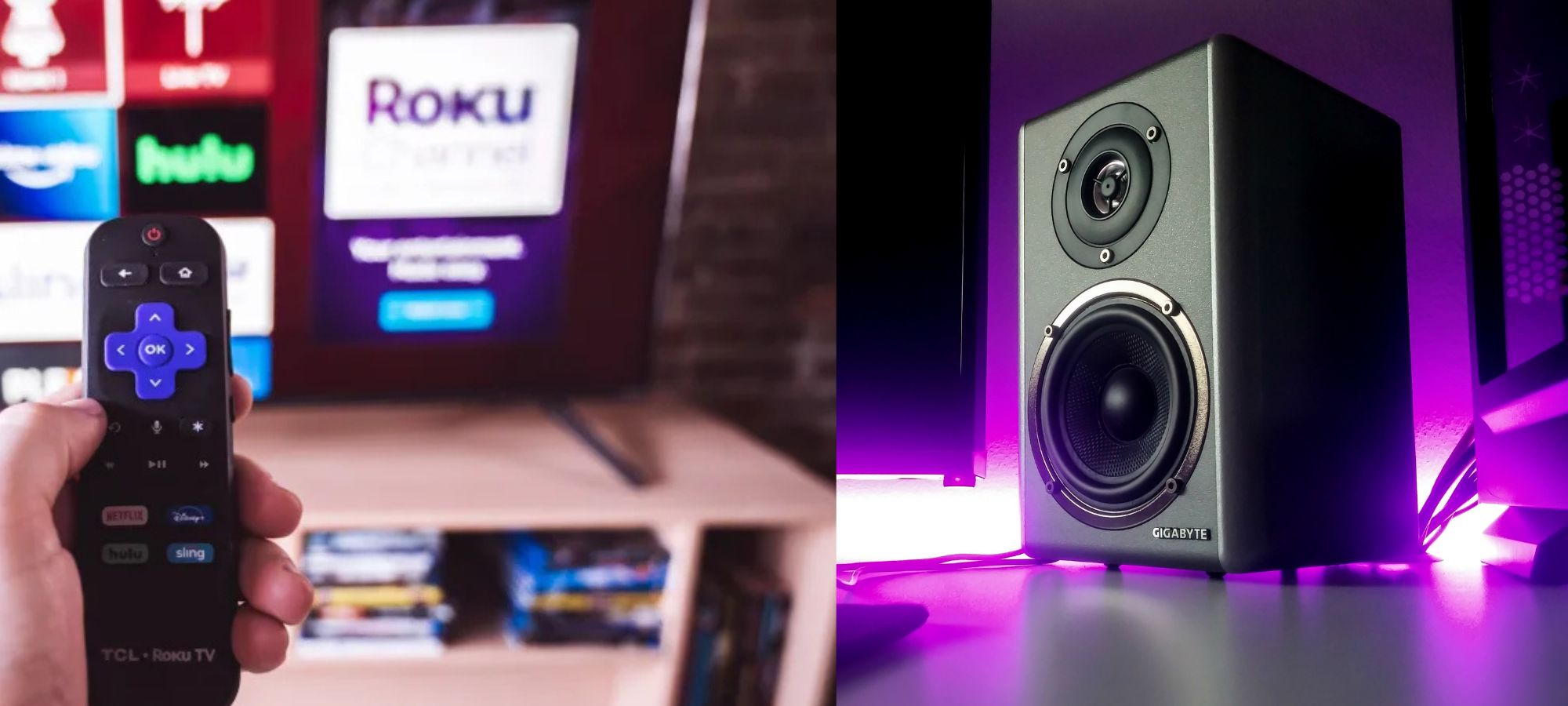
When you want to setup surround sound to TV with cable box, connect the cable receiver to an available HDMI input on the television, power on both devices, and select that input with your remote. To connect surround sound to DirecTV genie, the same HDMI path applies, though you may need to wait a moment for the signal to lock. A common question is how do I hook up my Roku to my surround sound: if your soundbar or AVR has its own HDMI input, run the Roku player into that device first, then run a single cable from the soundbar’s output to the TV. To hook up Fire TV to surround sound, the stick goes directly into an HDMI port on the television. If you want to get Chromecast to play through surround sound, the surround-sound toggle is limited to Chromecast 3rd gen or older and Chromecast Ultra, and you enable it inside the Google Home app under the device’s Sound options. When it is time to hook up a DVD player to surround sound or bring a game console into the mix, treat the player like any source by connecting it to an HDMI input on the TV and turning it on so the set detects it, then assign a name and icon to that input if your TV offers the option. Some AVRs and soundbars are designed to be the single switching point for all of these devices, so if your audio hub is the central switch, route the cable box, disc player, and console through it instead.
Connecting blu-ray and specific disc players
When you need to connect surround sound to Blu Ray player hardware, the single most reliable path is an HDMI cable running from the player directly into an A/V receiver or soundbar. Route the cable from the player directly into an A/V receiver or soundbar. Sony specifies that with an amplifier connected by HDMI, you should open the player's own menu and set Audio (HDMI) or Digital Audio Output to PCM. Panasonic owners may need to visit the Audio Output menu and change the DTS selection from Bitstream to PCM. This step is required if the amplifier cannot decode Dolby DTS on its own. Before troubleshooting further, you may need to know if my Sony Blu-ray surround sound is actually receiving a multi-channel signal. Sony says to confirm audio is coming from the rear speakers and that you can hear a Dolby Digital 5.1 track. The player's surround option must be enabled and the source disc itself must be multi-channel. For older hardware, the question of how to get surround sound from Cinemablaster Studio systems comes down to the amplifier's decoding limits, but no official documentation for that specific system was retrieved. If the unit lacks multi-channel support, the player must be told to output PCM. This prevents the soundtrack from being sent in a format the system cannot process.
Setting up brand-specific surround systems
When you need to hook up Sony surround sound to TV, the physical connection is only half the battle. You start by running one HDMI cable from your source device to the television. Then you run a second cable from the display’s HDMI port labeled “ARC” or “eARC/ARC” to the audio system. After that, you must wake up the screen’s menus. Press the Quick Settings button on the remote and navigate to Settings → Display & Sound → Audio output. Set eARC mode to Auto and change Speakers to Audio system before enabling eARC on the sound system itself.
Wireless configurations follow a different rhythm. The steps to set up a Sony surround sound system over HDMI ARC do not apply when you set up polk surround sound using Play-Fi. With Polk, you must first bring each speaker onto the wireless network. Let the Polk Omni app install any pending updates before launching the Omni Utility app. Inside the app, tap the configuration wheel. Choose Surround Sound and use the + icon to create a new system. Then assign the front sound bar and left and right rear speakers. Measure each distance to the listening position to the closest foot. This process requires an SB1 Plus sound bar paired with Play-Fi-enabled rear speakers such as the S2, S2R, or S6.
Some older hardware lacks a modern digital handshake. When you add regent HT-391 surround sound to a television, the connection typically relies on analog RCA or basic optical inputs rather than HDMI ARC. You will need to match the output jacks on the display to the input jacks on the Regent unit. Finally, select the corresponding source on the system’s front panel or remote.
Surround sound without a standard receiver
You can still hook up surround sound speakers without a receiver by using a powered soundbar that includes dedicated rear channel outputs, but first confirm your television’s audio out is set to pass-through, otherwise the set will downmix everything to stereo before the bar ever sees it.
When you need to add a surround sound system attached to my TV when hooking my computer to it, the most common snag is the graphics card sending a 2.0 signal by default, so open your playback-device properties in Windows or macOS and configure the speaker setup for 5.1 before launching any content.
To hook up surround sound to projector, many models lack ARC entirely, so plan on running a separate optical cable from your source straight into the audio system and do not expect the projector to forward a multichannel track.
If you want to connect dot or Alexa to surround sound, the Alexa app supports grouping supported Echo devices into a stereo pair with a subwoofer for music playback, but this does not create a true home-theater surround field tied to a television.
Software, remotes, and special playback setups
Before you touch a single cable, make sure your television is actually sending a multichannel signal. Many sets default to stereo output. You must manually switch the TV to bitstream or pass-through before an external system will ever receive true surround. Once that is settled, you can set up a universal remote to a surround sound system by programming the remote with the manufacturer code for your receiver or soundbar. This lets a single clicker control volume, input selection, and power without juggling three different handsets. For content creators, the path to a proper multi-channel project starts when you mix surround sound in Adobe Premiere Pro by creating a sequence with a 5.1 surround audio master track. Then open the Essential Sound panel through the Window menu to assign audio types, and use Edit > Convert Sample Type to convert a mono or stereo file to 5.1 before applying effects like Surround Reverb. Playback from personal media libraries trips people up in a different way. To use surround sound with an MKV file, you often need a player that can pass the encoded multi-channel stream directly to your audio system. Many default media apps will decode the file to stereo before it ever leaves the computer. Finally, if you are capturing live audio and need to get surround sound with record, confirm that your interface is sending discrete channels to the software. Also make sure the project is set to a multi-channel template from the moment you create the session.